1
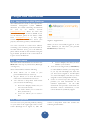
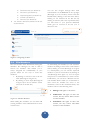
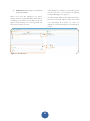
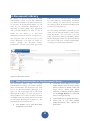
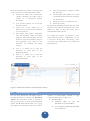
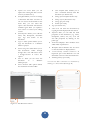
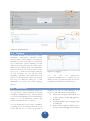
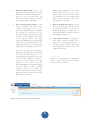
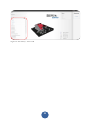
Download IFC models: point to the right side of the model with your mouse and click on Download’ (Rectangle B in figure 23). You can then select the format/standard in which you would like to download the IFC model. View and merge IFC models: you can view IFC models on two levels: the subsub-project level, allowing you to view a part of the 3D model (e.g. the walls) and the sub-project level, allowing you to see the whole model (e.g. the school) which consists of the underlying IFC models in the sub-sub projects. The latter merges the different parts of the models stored in the sub-sub-projects into one single model (if you have structured the sub-projects as described in section 5.1). When you have clicked on View in 3D a new window opens. You can choose which objects and layers of the model you would like to see by using the tick boxes on the left side of the screen (Rectangle A in figure 24). You can view parts of the model by pointing to the right side of a model in a sub-sub project and clicking on View in 3D (Rectangle B in figure 23). You can view the whole model by selecting a sub-project in the project tree and clicking on View in 3D in the main menu (Rectangle D in figure 23). Please note that when you have uploaded multiple versions of for instance the walls in sub-sub-project ‘Walls’, the IFC library will merge the model you have uploaded most recently. E. D. Browse through IFC objects: you can browse through a list of all IFC objects (e.g. entities, relations, etc.) stored in a model, by pointing to the right side of a model and clicking on Browse IFC objects (Rectangle B in figure 23).1 View project details: by clicking on view project details (rectangle D in figure 23) you can change the name of your IFC model, delete the IFC model and change the measurement unit of the specific IFC model. ___________ 1 Here you can also find the GUID and Oic codes to adapt or add elements of the IFC model in your own software. C. A. B. Figure 23 - IFC Library - Main Functionalities 21