1
L-Vis User Manual
143
LOYTEC
•
For the nvoSwitch.state network variable, set the NV Update Flags value to
Focus Loss.
•
Select the mapping item in the tree view and go to the Mapping tab. In the
value list, select OFF. Click on Select Bitmap and choose a bitmap which
should be displayed when the switch is OFF. After this, select ON in the value
list and select the bitmap for the ON state.
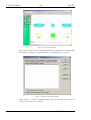
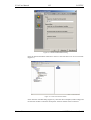
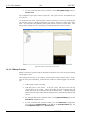
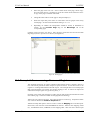
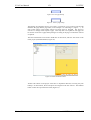
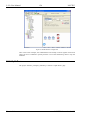
The configuration now looks similar to Figure 21. The project can now be loaded into the
L-Vis device.
Figure 21: SNVT_switch on a bitmap control
14.1.3 Numeric Control
A numeric control is used whenever a data point needs a continuous numerical output or
input, like a percentage value or a temperature value.
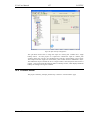
This example shows how to use a SNVT_switch together with a numeric control. The state
element of the SNVT_switch network variable is fixed to 1, whereas the value part can be
set between 0 and 100.
Version 3.1
•
Add a numeric control to the page
•
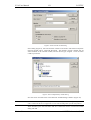
Add data points to the control. To do this, select Add Data Point from the
context menu of the control. Add an input data point for nviSwitch.value and
output data points for nvoSwitch.state and nvoSwitch.value. A default mapping
between the state input values and the displayed text is automatically added to the
control.
•
For the input data point (nviSwitch.value), set the System Startup flag on the
Data Point configuration tab.
•
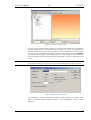
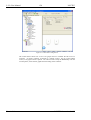
For the nvoSwitch.state data point, go to the Data Point configuration tab,
configure the Default Value to 1 and set the Constant Value flag. Set the NV
Update Flags value to Focus Loss.
LOYTEC electronics GmbH