1
2.
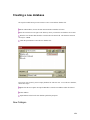
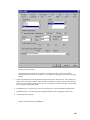
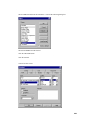
Use the File menu to create a new database. Be sure select the same folder that your other DXbase
databases are located in. Also, select a unique name for this database. This will become your new
database after we complete this repair process.
3.
Close DXbase.
4.
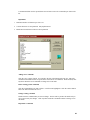
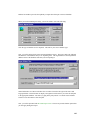
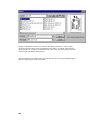
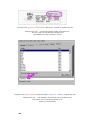
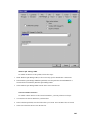
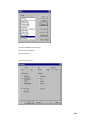
From the DXbase program group, select DXB Import. Your target database will be the one that
you creatged in step 2 above. Your source will be the old one that is corrupted. Be sure to select
the option to load all records.
5.
After importing your data, close the import screen.
6.
Run DXbase. You will be prompted for the database name. Use the button to the right of the
database field to select the new database.
7.
Initialize tables.
This completes the process. After verifying that all is back in working order, be sure you make
yourself a backup of the new database. You will also want to remove the old (damaged) database
by deleting it so that you don’t get confused in the future and try to use it.
How did this error happen?
The primary reason this can occur is due to something abruptly terminating DXbase while it was
in the process of closing down. One of the last things that occurs when you close DXbase is that it
writes statistics data to the database. If something abnormal happens to interrupt this process, you
could be left with a partially empty database table because all of the entries were not saved.
Typically, a user may have closed DXbase and nearly immediately tried to close Windows or
otherwise shuts down their machine. You should always allow DXbase to properly shut down.
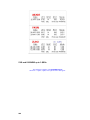
Toolbars Vanished
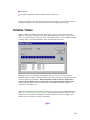
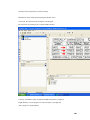
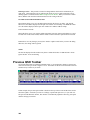
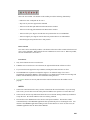
In the past, we have had some reports that all of sudden, when DXbase was started, the toolbars
with the bitmap buttons have disappeared. A check of the VIEW/Toolbars menu indicates that
they are turned on but yet they are not on the screen.
Among the dozens of clean up activities that occur when you exit DXbase, one event is that all screen
coordinates and other information about your various toolbars is saved to the DXbase INI file located in your
Windows directory. We have never been able to determine the cause for this condition. We suspect that
perhaps DXbase was not closed properly, or there was a write error to the hard drive when the settings were
being written to your INI file, but with only a few reports we have been unable to find any cause/effect.
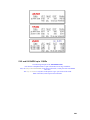
Follow this process for correcting this problem:
92