1
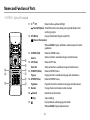
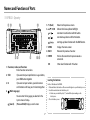
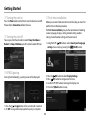
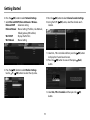
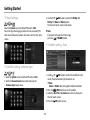
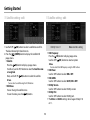
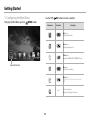
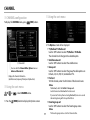
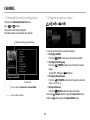
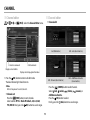
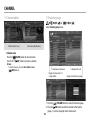
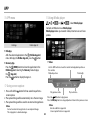
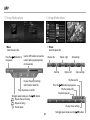
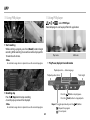
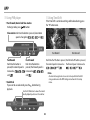
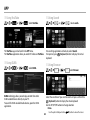
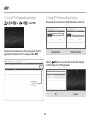
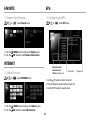
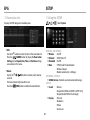
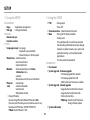
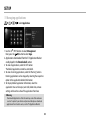
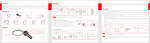
CHANNEL APP Favorite group APP menu or . Select APP menu. 1.Use the /// buttons to select an application. 2.Press the (MENU) button to display the Options menu. 3.Use the (OK) buttons to select either Add to Favorite, Assign Hotlink or Hide App commands. Channel sort (Red button) Move focus (Blue button) Channel sort Press the (RED) button to sort channels. Select satellite TV or Radio Default, A-Z, Z-A, CAS, FTA, HD-SD. Next, press the (OK) button to save changes. Rename group Press the (GREEN) button to rename the group. Press the (OK) button to display the keyboard screen. Select group Press the (YELLOW) button to select the favorite group. To select F1 ~ F12, press the (OK) button. Move Press the (BLUE) button to move channels. Use the // (OK) buttons to make a selection. 3.Press the (Back) button to return to the Channel Editor menu. APP Menu Add to Favorite Adds the app to the Assign Hotlink (FAVORITE) list. Assign Hotlink Assigns the selected application to Hotlink. Press the (Assign) button to run the assigned application. Note Only applications can be assigned to Hotlink. 21