1
LAUNCH
3)
4)
5)
6)
7)
X-431
type list, and select the type in the
pop-up list.
Click the button to the right of 'Expired',
and select the data in the pop-up list.
Click the number or 'All' to the right of
'Priority' to set the priority of the
displayed To Do.
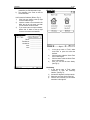
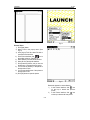
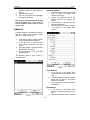
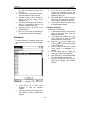
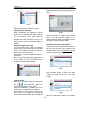
Click the box to the right of each function.
When 'X' is displayed in the box, the
function is selected. (See Fig.31)
Click [OK] button to close the To Do
Display interface.
Then you can see the corresponding To
Do in the list box of the To Do interface.
3)
4)
5)
Add New Schedule
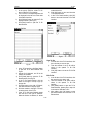
Set the date of the schedule:
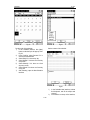
1) In the Schedule interface, click the Date
button on the upper left to open the
Select Date interface.
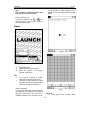
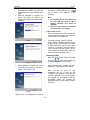
2) In the Select Date interface, click [
]
icon to the left of the month or year to
select the previous month or year.
3) Click the [ ] icon to the right of the
month or year to select the next month
or year. (See Fig.33)
4) Click to select the date in the current
month. When it is highlighted, it is
selected.
5) Or click [Today] button to display the
current year, month and date directly.
6) Click [OK] button to save the date setting
and close the Select Date interface.
7) You may see the date you set on the
button on the top right of the Schedule
interface.
Schedule
The basic functions of Schedule include: add
new schedule, view schedule, delete schedule,
etc.
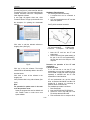
Fig.32
1)
2)
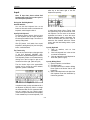
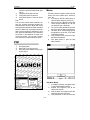
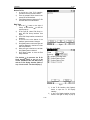
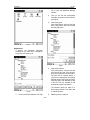
In the list box in the middle of the
interface, all schedules on that day
corresponding to the Date button will be
displayed. (See Fig.32)
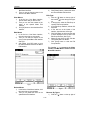
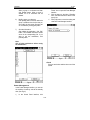
Click [New] button, and then the cycle
list pops up. You may select 'Common',
'Daily', 'Weekly', 'Monthly' and 'Annual'.
In the cycle list, select one item to open
the Schedule New interface.
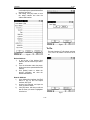
In the pop-up list of 'PIM', select
'Schedule' to open the Schedule
interface.
Click the Date button on the upper left of
the interface to open the Select Date
interface.
C-17