1
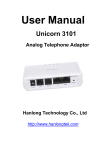
Unicorn 3101 User Manual
5
4.1
Safety ............................................................................................................. 6
BASIC OPERATIONS .................................................................................................. 6
5.1
5.2
6
7
8
9
Get Familiar with Voice .................................................................................. 6
Make Phone call............................................................................................. 8
5.2.1
Calling Phone or Extension Numbers .................................................... 8
5.2.2
Call Hold ................................................................................................. 8
5.2.3
Call Waiting ............................................................................................. 8
5.2.4
3-way Conferencing ................................................................................ 9
Star Code Style 3-way Conference ....................................................................... 9
Bellcore Style 3-way Conference .......................................................................... 9
5.2.5
Direct IP-to-IP Calls ................................................................................ 9
5.2.6
Blind Transfer ........................................................................................ 10
5.2.7
Attended Transfer ................................................................................. 11
5.2.8
Make and Receive PSTN Calls ............................................................ 11
5.3
Call Features ................................................................................................ 11
5.3.1
Call Features Tables ............................................................................. 11
5.3.2
PSTN Pass Through ............................................................................. 12
5.4
FAX............................................................................................................... 12
5.5
Status Light Indicator ................................................................................... 12
CONFIGURATION GUIDE ......................................................................................... 13
6.1
Configuring Unicorn3101 using Web Browser............................................. 13
6.1.1
Accessing the Web Configuration ........................................................ 13
6.1.2
Programming Unicorn 3101 via the LAN Port ...................................... 13
6.1.3
Programming Unicorn 3101 via the WAN Port ..................................... 14
6.1.4
User Programming and Configuration .................................................. 14
6.1.5
Passwords ............................................................................................ 14
6.1.6
Configuration Options and Explanations .............................................. 15
6.1.6.1 Device Status ................................................................................ 15
Basic Options Settings ................................................................................. 16
Super Options Setting .................................................................................. 18
FXS Port20
6.1.7
Saving the Configuration Changes ....................................................... 27
6.1.8
Rebooting the Unicorn 3101 ................................................................. 27
6.2
Configuring Unicorn 3101 via Voice Prompt ................................................ 27
6.2.1
DHCP Mode .......................................................................................... 27
6.2.2
Static IP Mode ....................................................................................... 28
6.2.3
Configuration through a Central Server................................................ 28
SOFTWARE UPGRADE ............................................................................................ 28
RESTORE FACTORY DEFAULT SETTINGS............................................................ 29
TECHNICAL SUPPORT CONTACT .......................................................................... 29
Copyright © 2008 Hanlong Technology Co., Ltd
Page 2 of 29