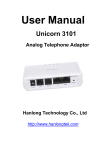
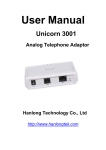
1
User Manual
Unicorn 3002
Analog Telephone Adaptor
Hanlong Technology Co., Ltd
http://www.hanlongtek.com
Table of Content
1.
2.
3.
WELCOME ................................................................................................................ 3
WHAT IS IN THE PACKAGE..................................................................................... 3
PRODUCT OVERVIEW ............................................................................................. 4
3.1.
Key Features ............................................................................................... 4
3.2.
Hardware specification ................................................................................ 5
4.
INSTALLATIONS....................................................................................................... 5
4.1.
Safety .......................................................................................................... 6
5.
BASIC OPERATIONS ............................................................................................... 7
5.1.
Get Familiar with Voice Prompt ................................................................... 7
5.2.
Make Phone call .......................................................................................... 9
5.2.1.
Calling Phone or Extension Numbers................................................... 9
5.2.2.
Call Hold ............................................................................................... 9
5.2.3.
Call Waiting .......................................................................................... 9
5.2.4.
3-way Conferencing.............................................................................. 9
Star Code Style 3-way Conference ..................................................................... 9
Bellcore Style 3-way Conference ...................................................................... 10
5.2.5.
Direct IP-to-IP Calls ............................................................................ 10
5.2.6.
Blind Transfer ......................................................................................11
5.2.7.
Attended Transfer ............................................................................... 12
5.2.8.
Hunting Group .................................................................................... 12
5.2.9.
Inter-port Calling ................................................................................. 12
5.3.
CALL FEATURES ...................................................................................... 13
Call Features Tables ......................................................................................... 13
5.4.
FAX............................................................................................................ 13
5.5.
Status Light Indicator ................................................................................. 14
6.
CONFIGURATION GUIDE....................................................................................... 14
6.1.
Configuring Unicorn 3002 using Web Browser .......................................... 14
6.1.1.
Accessing the Web Configuration....................................................... 15
6.1.2.
Programming Unicorn 3002 via the LAN Port..................................... 15
6.1.3.
Programming Unicorn 3002 via the WAN Port ................................... 16
6.1.4.
User Programming and Configuration ................................................ 16
6.1.5.
Passwords .......................................................................................... 16
6.1.6.
Configuration Options and Explanations ............................................ 17
6.1.6.1 Device Status: ............................................................................. 17
6.1.6.2 Basic Options .............................................................................. 18
6.1.6.3 Super Options ............................................................................. 19
6.1.6.4 FXS PORT 1: .............................................................................. 21
6.1.6.5 FXS PORT 2: .............................................................................. 28
6.1.7.
Saving the Configuration Changes ..................................................... 28
6.1.8.
Rebooting the Unicorn 3002 ............................................................... 29
6.2.
Configuring Unicorn 3002 via Voice Prompt .............................................. 29
Hanlong Technology Co., Ltd
1/19/2012
Unicorn 3002 User Manual
Firmware 1.0.0.46
Page 2 of 31
Last Updated
6.2.1.
DHCP Mode ....................................................................................... 29
6.2.2.
STATIC IP Mode ................................................................................. 29
6.3.
Configuration through a Central Server ..................................................... 29
7.
8.
9.
1.
SOFTWARE UPGRADE.......................................................................................... 30
RESTORE TO FACTORY DEFAULT SETTINGS.................................................... 31
TECHNICAL SUPPORT CONTACT........................................................................ 31
WELCOME
Unicorn 3002 is an all-in-one VoIP integrated access device that features superb
audio quality, rich functionalities, high level of integration, compactness and
ultra-affordability. The Unicorn 3002 is fully compatible with SIP industry standard and can
interoperate with many other SIP compliant devices and software on the market.
Unicorn 3002 has two FXS ports.
Special compatibility features include:
Nortel MCS
Standard SIP
Broadsoft
Howdy
2.
WHAT IS IN THE PACKAGE
The Unicorn 3002 package contains:
One Unicorn 3002 VoIP adapter
One universal power supply
One Ethernet cable
Hanlong Technology Co., Ltd
1/19/2012
Unicorn 3002 User Manual
Firmware 1.0.0.46
Page 3 of 31
Last Updated
3.
PRODUCT OVERVIEW
3.1.
Key Features
Supports SIP 2.0(RFC 3261), TCP/UDP/IP, RTP/RTCP, HTTP, ICMP, ARP/RARP,
DNS, DHCP (both client and server), NTP, PPPOE, STUN, TFTP, UPNP,etc.
Built-in router, NAT.
Device bridge mode support
Supports dual SIP accounts via dual FXS ports
Powerful digital signal processing (DSP) to ensure superb audio quality; advanced
adaptive jitter control and packet loss concealment technology
Support various vocoders including G.711 (a-law and u-law), G.723.1 (5.3K/6.3K),
G.726 (32K), as well as G.729A, and ILBC(pending).
Support Caller ID/Name display or block, Hold, Call Waiting/Flash, Call Transfer, Call
Forward, 3-way conferencing, Call Waiting Caller ID, in-band and out-of-band DTMF,
Dial Plans, etc.
Support fax pass through (for PCMU and PCMA) and T.38 FoIP (Fax over IP)
Support syslog
Support volume amplification
Support Silence Suppression, VAD (Voice Activity Detection), CNG (Comfort Noise
Generation), Line Echo Cancellation (G.168), and AGC (Automatic Gain Control)
Support standard encryption and authentication (DIGEST using MD5 and MD5-sess)
Signaling and call encryption via TLS and SRTP, enabling enterprise-class security.
Support snmp v2
Support for Layer 2 (802.1Q VLAN, 802.1p) and Layer 3 QoS (ToS, DiffServ, MPLS)
Support automated NAT traversal without manual manipulation of firewall/NAT
Support device configuration via built-in IVR, Web browser or central configuration file
through TFTP or HTTP
Support firmware upgrade via TFTP or HTTP with encrypted configuration files.
Ultra compact and lightweight design, great companion for travelers
Compact, lightweight Universal Power adapter.
Hanlong Technology Co., Ltd
1/19/2012
Unicorn 3002 User Manual
Firmware 1.0.0.46
Page 4 of 31
Last Updated
3.2.
Hardware specification
Model
Unicorn 3002
LAN interface
1 x RJ45 10Base-T
WAN interface
1 x RJ45 10Base-T
FXS telephone port
2 x FXS
LED light
Green color
Universal switching power supply
Input: 100-240VAC 50-60 Hz
Output: +5VDC, 1200mA,
UL certified
Dimension
70mm (W) ×130mm (D)×27mm (H)
Weight
0.30kg
Temperature
40 – 130 F
5 – 45 C
Humidity
10 - 90%
4.
INSTALLATIONS
Unicorn 3002 Analog Telephone Adaptor is an all-in-one VoIP integrated device
designed to be a total solution for networks providing VoIP services.
The Unicorn 3002 VoIP functionalities are available via regular analog telephones.
Unicorn 3002 has two FXS ports. The PHONE1 port next to the LAN is FXS port 1 and the
PHONE2 on the side of the Unicorn 3002 is FXS port 2. Each FXS port can have a
separate SIP account. This is a key feature of Unicorn 3002. Both ports can make calls
concurrently.
Hanlong Technology Co., Ltd
1/19/2012
Unicorn 3002 User Manual
Firmware 1.0.0.46
Page 5 of 31
Last Updated
Following are the steps to install a Unicorn 3002:
Connect a standard touch-tone analog telephone (or fax machine) to PHONE1 port.
Connect another standard touch-tone analog telephone (or fax machine) to PHONE2
port.
Insert the Ethernet cable into the WAN port of Unicorn 3002 and connect the other
end of the Ethernet cable to an uplink port (a router or a modem, etc.)
Connect a PC to the LAN port of Unicorn 3002.
Insert the power adapter into the Unicorn 3002 and connect it to a wall outlet.
4.1.
Safety
The Unicorn 3002 is compliant with various safety standards including FCC/CE and
C- Tick. Its power adaptor is compliant with UL standard. The Unicorn 3002 should only
operate with the universal power adaptor provided in the package.
Warning: Please do not use a different power adapter. Using other power
adapter may damage the Unicorn 3002 and will void the manufacturer warranty!
Hanlong Technology Co., Ltd
1/19/2012
Unicorn 3002 User Manual
Firmware 1.0.0.46
Page 6 of 31
Last Updated
Caution: Changes or modifications to this product not expressly approved by Hanlong
Technology, or operation of this product in any way other than as detailed by this User
Manual, could void your manufacturer warranty.
Information in this document is subject to change without notice. No part of this
document can be reproduced or transmitted in any form or by any means, electronic or
mechanical, for any purpose without the express written permission of Hanlong
Technology.
5.
BASIC OPERATIONS
5.1.
Get Familiar with Voice Prompt
Unicorn 3002 has stored a voice prompt menu for quick access to settings and simple
configuration. You can enter this voice prompt menu two ways:
Pick up the receiver (or press the Handsfree button) of the analog telephone and
press “***”,
A voice will say, “Enter the new option.” At this point, you can select from the
following menu voice prompt options to begin using the Unicorn 3002:
Menu
Main
Menu
Voice Will Say the Following:
“Enter a Menu Option”
Enter “*” for the next menu option
Enter “#” to return to the main menu
Enter 01 – 07,12 - 17, 47, 86 or 99 Menu
option
01
“DHCP Mode”, “Static IP Mode”
Enter ‘9’ to toggle the selection
If user selects “Static IP Mode”, user need
configure all the IP address information
through menu 02 to 05.
If user selects “Dynamic IP Mode”, the
device will retrieve all IP address
information from DHCP server
automatically when user reboots the
device.
02
“IP Address “ + IP address
The current WAN IP address is
announced Enter 12-digit new IP address
if in Static IP Mode.
03
“Subnet “ + IP address
Same as Menu option 02
04
“Gateway “ + IP address
Same as Menu option 02
05
“DNS Server “ + IP address
Same as Menu option 02
06
“MAC Address”
Announces the Mac address of the unit.
Hanlong Technology Co., Ltd
1/19/2012
Unicorn 3002 User Manual
Firmware 1.0.0.46
Page 7 of 31
Last Updated
07
Preferred Vocoder
Enter “9” to go to the next selection in the
list:
PCM U
PCM A
G-726
G-723
G-729
12
WAN Port Web Access
Enter “9” to toggle between enable and
disable
13
Firmware Server IP
Announces current Firmware Server IP
address. Enter 12 digit new IP address.
Address
14
Configuration Server IP
Announces current Config Server Path IP
address. Enter 12 digit new IP address.
Address
15
Upgrade Protocol
Upgrade protocol for firmware and
configuration update.
Enter “9” to toggle between TFTP and
HTTP
16
Firmware Version
Firmware version information.
17
Firmware Upgrade
Firmware upgrade mode. Enter “9” to
rotate among the following three options:
1.
always check
2.
check when pre/suffix changes
3.
never upgrade
47
“Direct IP Calling”
Enter the target IP address to make a
direct IP call, after dial tone. (See “Make
a Direct IP Call”.)
99
“RESET”
Enter “9” to reboot the device; or
Enter MAC address to restore factory
default setting (See Restore Factory
Default Setting section)
“Invalid Entry”
Automatically returns to Main Menu
Other Menu Prompt Features:
By pressing “***” on the analog telephone, you can access the voice menu.
“*” shifts down to the next menu option.
“#” returns to the main menu.
“9” functions as the ENTER key in many cases to confirm an option.
All entered digit sequences have known lengths-2 digits for menu option and 12
digits for IP address. Once all of the digits are collected, the input will be processed.
Hanlong Technology Co., Ltd
1/19/2012
Unicorn 3002 User Manual
Firmware 1.0.0.46
Page 8 of 31
Last Updated
Incorrect keyed entry cannot be deleted or undone. The Unicorn 3002 will prompt you
to start over by telling you that you made an error.
5.2.
5.2.1.
Make Phone call
Calling Phone or Extension Numbers
Dial the number directly and wait for 4 seconds (Default is 4 seconds. To change the
default, change the settings via the web configuration page under “No Key Entry
Timeout”). Or
Dial the number directly, and press # (assuming that “Use # as Dial Key” is set to
“YES” during web configuration of your Unicorn 3002).
Other functions available during the call are call-waiting/flash, call-transfer, and callforward. Your SIP gatekeeper/proxy server needs to support these features in order for
them to work.
5.2.2. Call Hold
While in conversation, pressing the “FLASH” button on the attached phone will put the
remote end on hold. Pressing the “FLASH” button again will release the previously Hold
party and the bi-directional media will resume.
5.2.3. Call Waiting
If call waiting feature is enabled, while the user is in a conversation, he will hear a special
stutter tone if there is another incoming call. User can press the flash button to put the
current call party on hold and switch to the other call. Pressing flash button toggles
between two active calls.
5.2.4. 3-way Conferencing
Unicorn3002 supports 3-way conference in two styles: star code style or Bellcore style.
Star Code Style 3-way Conference
Assuming that call party A and B are in conversation. A wants to bring C in a conference:
1. A presses FLASH (on the analog phone, or Hook Flash for old model phones) to get a
dial tone.
2. A dials *23 then C’s number then # (or wait for 4 seconds).
Hanlong Technology Co., Ltd
1/19/2012
Unicorn 3002 User Manual
Firmware 1.0.0.46
Page 9 of 31
Last Updated
3. If C answers the call, then A press “flash” to bring B, C in the conference.
4. If C does not answer the call, A can press “flash” back to talk to B.
Bellcore Style 3-way Conference
Bellcore style 3-way conference is also supported. To do this, user needs to enable “Use
Bell-style 3-way Conference” in FXS web configuration.
Assuming that call party A and B are in conversation. A wants to bring C in a conference:
1. A presses FLASH (on the analog phone, or Hook Flash for old model phones) to get a
dial tone.
2. A dials C’s number then # (or wait for 4 seconds).
3. If C answers the call, then A press “flash” to bring B, C in the conference.
4. If C does not answer the call, A can press “flash” back to talk to B.
5.2.5.
Direct IP-to-IP Calls
Direct IP calling allows two parties, that is, a FXS Port with an analog phone and another
VoIP Device, to talk to each other in an ad hoc fashion without a SIP proxy.
Elements necessary to completing a Direct IP Call:
1. Both Unicorn3002 and other VoIP Device, have public IP addresses, or
2. Both Unicorn3002 and other VoIP Device are on the same LAN using private IP
addresses, or
3. Both Unicorn3002 and other VoIP Device can be connected through a router using
public or private IP addresses (with necessary port forwarding or DMZ).
Unicorn3002 supports two ways to make Direct IP Calling:
Using IVR
1. Pick up the analog phone then access the voice menu prompt by dial “***”
2. Dial “47” to access the direct IP call menu
3. Enter the IP address using format ex. 192*168*0*160 after the dial tone.
Using Star Code
1. Pick up the analog phone then dial “*47”
2. Enter the target IP address using same format as above.
Note: NO dial tone will be played between step 1 and 2.
Destination ports can be specified by using “*” (encoding for “:”) followed by the port
number.
Examples:
a) If the target IP address is 192.168.0.160, the dialing convention is
Hanlong Technology Co., Ltd
1/19/2012
Unicorn 3002 User Manual
Firmware 1.0.0.46
Page 10 of 31
Last Updated
*47 or Voice Prompt with option 47, then 192*168*0*160.
followed by pressing the “#” key if it is configured as a send key or wait 4 seconds. In this
case,the default destination port 5060 is used if no port is specified.
b) If the target IP address/port is 192.168.1.20:5062, then the dialing convention would be:
*47 or Voice Prompt with option 47, then 192*168*0*160*5062 followed by pressing the
“#” key, if it is configured as a send key or wait for 4 seconds.
NOTE: When completing direct IP call, the “Use Random Port” should set to “NO”.You
can not make direct IP calls between FXS1 to FXS2 since they are using same IP.
5.2.6. Blind Transfer
Assuming that call party A and party B are talking to each other on the phone. Party A
wants to transfer party B to party C:
Party A presses FLASH (on the analog phone, or Hook Flash for old model phones)
to get a dial tone.
Then party A dials *87 then dials party C’s number, and then # (or wait for 4 seconds)
Party A can hangs up the phone.
Note: Call features have to be activated during web configuration by selecting YES to
“Enable Call Features”. These features need to be supported by your SIP
gatekeeper /proxy server in order to work.
Party A can hold on to the phone and wait for one of the three following events:
1.
A quick confirmation tone (temporarily using the call waiting indication tone)
followed by a dial tone. This indicates the transfer is successful (transferee has
received a 200 OK signal from transfer target). At this point, party A can either hang
up or make another call.
2.
A quick busy tone followed by a restored call (on supported SIP gatekeeper
platforms only). This means the transferee has received a 4xx response signal for the
INVITE and will try to recover the call. The busy tone is just to indicate to the
transferor that the transfer has failed.
3.
Busy tone keeps playing. This means the Unicorn 3002 has failed to receive the
second NOTIFY signal from the transferee and decided to time out.
Note: this does not indicate the transfer has been successful, nor does it indicate the
transfer has failed. When transferee uses a device that does not support the second
NOTIFY signal, this will be the case. In poor or unstable network scenarios, this could also
happen, although the transfer may have been completed successfully.
Hanlong Technology Co., Ltd
1/19/2012
Unicorn 3002 User Manual
Firmware 1.0.0.46
Page 11 of 31
Last Updated
5.2.7.
Attended Transfer
Assuming that call party A and party B are in conversation. Party A wants to Attend
Transfer party B to party C:
Party A presses FLASH (on the analog phone, or Hook Flash for old model phones)
to get a dial tone.
Party A then dials party C’s number then # (or wait for 4 seconds). Party A and party
C now are in conversation.
Party A can hang
Note: When Attended Transfer failed and if party A hangs up, the Unicorn 3002 will
ring party A again to remind party A that party B is still on the call, by pressing FLASH or
Hook again will restore the conversation between party A and party B.
5.2.8. Hunting Group
This feature allows user to setup a single SIP account on the gateway and have the ability
to use all FXS ports to make/receive calls. Using this feature, all ports active in same hunt
group will have the same phone number and incoming calls will be distributed in a round
robin manner among the ports active in that hunt group.
Example configuration of a hunting group:
FXS Port #1: SIP UserID and Authenticate ID entered, Account Active set to "Yes"
FXS Port #2: SIP UserID and Authenticate ID left blank, Account Active set to Hunting
Group.
5.2.9. Inter-port Calling
In some cases a user may want to make phone calls between Unicorn 3002 ports when
the gateway will be used as stand alone unit, without any SIP server. This feature will also
be applicable when the Unicorn 3002 is used in mode Hunting Groups and will be
registered to SIP server only with one master number. In such cases users still will be able
to make inter-port calls by using the IVR feature. For example the user connected to port 1
can reach the user connected to port 3 by dialing *** and 72. Digit 7 indicated using
inter-port calling feature, digit 2 indicates port number which should be reached. At the
same manner the user connected to port 2 can reach the user connected to port 1 by
dialing *** and 71.
Note: The Unicorn 3002 support fast mode for inter-port calling by using “*48x”. For
example PORT 1 call PORT 2, just dail “*482”, PORT 2 call PORT 1, just need to dail
“*481”.
Hanlong Technology Co., Ltd
1/19/2012
Unicorn 3002 User Manual
Firmware 1.0.0.46
Page 12 of 31
Last Updated
5.3.
CALL FEATURES
Call Features Tables
Following table shows the call features of Unicorn 3002:
Key
Call Features
*23
3-way conference
*87
Blind Transfer
*30
Block Caller ID (for all subsequent calls)
*31
Send Caller ID (for all subsequent calls)
*67
Block Caller ID (per call)
*82
Send Caller ID (per call)
*50
Disable Call Waiting (for all subsequent calls)
*51
Enable Call Waiting (for all subsequent calls)
*70
Disable Call Waiting. (Per Call)
*71
Enable Call Waiting (Per Call)
*72
Unconditional Call Forward.
To use this feature, dial “*72” and get the dial tone. Then dial the forward
number and “#” for a dial tone, then hang up.
*73
Cancel Unconditional Call Forward.
To cancel “Unconditional Call Forward”, dial “*73” and get the dial tone,
then hang up.
*90
Busy Call Forward.
To use this feature, dial “*90” and get the dial tone. Then dial the forward
number and “#” for a dial tone, then hang up.
*91
Cancel Busy Call Forward.
To cancel “Busy Call Forward”, dial “*91” and get the dial tone, then hang
up.
*92
Delayed Call Forward.
To use this feature, dial “*92” and get the dial tone.
number and “#” for a dial tone and then hang up.
Dial the forward
*93
Cancel Delayed Call Forward.
To cancel this feature, dial “*93”, get the dial tone, and then hang up.
Flash/Hook
call waiting indication.
When in conversation without an incoming call, this action will switch to a
new channel to make a new call.
5.4.
FAX
Unicorn3002 supports FAX in two modes: T.38 (Fax over IP) and fax pass through. T.38 is
Hanlong Technology Co., Ltd
1/19/2012
Unicorn 3002 User Manual
Firmware 1.0.0.46
Page 13 of 31
Last Updated
the preferred method because it is more reliable and works well in most network
conditions. If the service provider supports T.38, please use this method by selecting Fax
mode to be T.38. If the service provider does not support T.38, pass-through mode may
be used. To send or receive faxes in fax pass through mode, users will need to select all
the Preferred Codecs to be PCMU/PCMA.
5.5.
Status Light Indicator
Following tables show the Unicorn 3002 button light pattern indication. But the Button
light Show the PHONE1 status only.
Red light always indicates not normal status, Green light mostly indicate normal
working status.
Light Indicator
Status Meaning
Power Light
Indicates Power. Remains ON when power is connected
Run Light
1 second ON then 1 second OFF Indicates device software is running.
Fast blinking indicate the product in firmware upgrading or provision
state
Phone Light
Indicate status of the FXS Port on the back panel
Busy – ON (Solid Green)
Available – OFF
Fast blinking – Ringing
Slow blinking FXS LEDs indicates voicemail for that port.
6.
CONFIGURATION GUIDE
6.1.
Configuring Unicorn 3002 using Web Browser
Unicorn 3002 has embedded Web server and HTML pages that allow users to
configure the Unicorn 3002 through an easy-to-use Web browser interface such as
Microsoft’s Internet Explorer or Netscape browser. Below is a screen shot of the Unicorn
3002 configuration page:
Hanlong Technology Co., Ltd
1/19/2012
Unicorn 3002 User Manual
Firmware 1.0.0.46
Page 14 of 31
Last Updated
6.1.1.
Accessing the Web Configuration
The Unicorn 3002 configuration page can be accessed via the LAN or WAN port.
The GUI interface can be download at bellow:
http://www.hanlongtek.com/books/3002_gui.rar
This gui include bellow pages:
1. SCREENSHOT OF DEVICE STATUS PAGE
2. SCREENSHOT OF BASIC OPTIONS PAGE
3. SCREENSHOT OF SUPPER OPTIONS PAGE
4. SCREENSHOT OF FXS PORT 1 PAGE
5. SCREENSHOT OF FXS PORT 2 PAGE
6.1.2.
Programming Unicorn 3002 via the LAN Port
To program Unicorn 3002 via the LAN port, directly connect an Ethernet cable from
your PC to the LAN port of the Unicorn 3002. After connecting the cable, confirm that the
green light of the LAN port is on. If the green light is not on, this means that your PC is not
yet properly connected to the Unicorn 3002 via the LAN port.
For LAN port configuration, use the following default IP address to access the device:
http://192.168.22.1
Hanlong Technology Co., Ltd
1/19/2012
Unicorn 3002 User Manual
Firmware 1.0.0.46
Page 15 of 31
Last Updated
6.1.3.
Programming Unicorn 3002 via the WAN Port
The WAN port access for web configuration is disabled by default from the factory. To
access the web configuration menu from the WAN port, you must first access the device
via the device LAN port (see instructions above “Programming Unicorn 3002 via the LAN
port”)
and enable the “Enable WAN Web Access” option.
After enabling WAN access, be sure that the WAN port of the Unicorn 3002 is
connected to an uplink (i.e. router, hub, switch, etc). Then, get the WAN IP address of the
Unicorn 3002 by following section 5.1 of this user manual and selecting menu option 02.
Then, access the Unicorn 3002 via your web browser by entering the WAN IP address:
http://Unicorn 3002’s IP Address
Be sure that your PC is connected to the router/hub/switch directly or via the LAN port
(which also serves as a pass-through connection for internet/network access for your PC)
of the Unicorn 3002.
6.1.4.
User Programming and Configuration
From your web browser, the Unicorn 3002 will show the following login screen:
Enter the password and click on the “Login” button
6.1.5.
Passwords
Passwords are case sensitive and all Unicorn devices come with factory default
passwords as indicated below:
Hanlong Technology Co., Ltd
1/19/2012
Unicorn 3002 User Manual
Firmware 1.0.0.46
Page 16 of 31
Last Updated
Advanced User Password for access to Super User Options: admin
End User Password for access to Basic User Options: 1234
Pages available for the end-user are:
• Device Status
• Basic Options
Additional pagess available to super user are:
• Super Options.
• FXS 1 port
• FXS 2 port
6.1.6.
Configuration Options and Explanations
After a correct password is entered in the login screen, the embedded web server
inside the Unicorn 3002 will show the configuration page, which is explained in details
below:
6.1.6.1
Device Status:
Device Status
Definitions
Setting options
The device ID, in HEX format. This is a very important ID for
ISP troubleshooting.
MAC Address
WAN IP Address
Product Model
Software Version
System Up Time
This field shows IP address of device
This product model is Unicorn3002
Information of software
Shows system up time since the last reboot.
Indicates whether the PPPoE connection is up if the Unicorn3002 is
PPPoE Link Up
connected to DSL modem.
I Indicate the NAT type behind which the device is when the
NAT
stun feature is defined.
Port Status
Shows several information regarding the individual FXS ports.
Port
Hook
Registration
DND
Forward
FXS1
On Hook
Registered
Yes
613
FXS2
On Hook
Registered
No
Hanlong Technology Co., Ltd
1/19/2012
Busy Forward
Delayed Forward
614
Unicorn 3002 User Manual
Firmware 1.0.0.46
Page 17 of 31
Last Updated
• Both FXS port1 and FXS port2 are registered with this SIP Server.
• FXS Port 1 user has set Do Not Disturb.
• FXS Port 1 user has set his calls to be forwarded unconditionally to ext 613.
• FXS Port 2 user has set his calls to forward to 614 when his phone is busy.
6.1.6.2
Basic Options
Setting options
BASIC OPTIONS SETTING
Definitions
Web Port
Default is 80.
IP Address
There are 3 modes under which the Unicorn 3002 can
operate:
- If DHCP mode is enabled, then all the field values for the
Static IP mode are not used (even though they are still
saved in the chipset's memory). The Unicorn 3002 will
acquire its IP address from the first DHCP server it
discovers from the office/home network it is connected to.
-To use the PPPoE feature, the PPPoE account settings
need to be set. The Unicorn 3002 will attempt to establish
a PPPoE session if any of the PPPoE fields have been
entered with data.
- If Static IP mode is enabled, then the IP address, Subnet
Mask, Default Router IP address, DNS Server 1 (primary),
DNS Server 2 (secondary) fields will need to be
configured by the user. These fields are reset to zero by
default.
Time Zone
This parameter controls how the displayed date/time will
be adjusted according to the specified time zone.
Allow DHCP Option 2
If set yes and under DHCP mode,the device will try to get
to override Time Zone
option 2 from DHCP configure and overwrite Time Zone.
setting
Daylight Savings Time
This parameter controls whether the displayed time will be
daylight savings time or not. If set to Yes, then the
displayed time will be 1 hour ahead of normal time.
Device Mode
This parameter controls whether the device is working in
NAT router mode or Bridge mode. Need save the setting
and reboot the device before the setting start to work
LAN Subnet Mask
Sets the LAN subnet mask. Default value is 255.255.255.0
LAN DHCP Base IP:
Base IP for the LAN port which functions as a Gateway for
the subnet. Default value is 192.168.22.1
Hanlong Technology Co., Ltd
1/19/2012
Unicorn 3002 User Manual
Firmware 1.0.0.46
Page 18 of 31
Last Updated
DHCP IP Lease Time:
Value is set in units of hours. Default value is 120hr (5
Days) The time IP address are assigned to the LAN clients
Port Map
Forwards a matching (TCP/UDP) port to a specific LAN IP
address with a specific (TCP/UDP) port
End User Password
This contains the password to access the
Configuration Menu. This field is case sensitive.
Web
If set to “Yes”, the unicorn3002 will respond to the PING
Reply to ICMP on WAN
command from other computers, but it also is vulnerable
port
to the DOS attack. Default is No.
Wan Side Http Access
6.1.6.3
If this parameter is set to “No”, the HTML configuration
update via WAN port is disabled.
Super Options
Setting options
Super Options
Definitions
Admin Password
This contains the password to access the Advanced
Web Configuration page. This field is case sensitive.
Only the administrator can configure the “Advanced
Settings” page. Password field is purposely left blank for
security reasons after clicking update and saved. The
maximum password length is 26 characters,only digit or
letter.
Layer3 Qos
This field defines the layer 3 QoS parameter which can
be the value used for IP Precedence or Diff-Serv or
MPLS. Default value is 48.
Layer2 Qos
Value used for layer 2 VLAN tag. Default setting is blank
Data VLAN Tag
When using Bridge Mode, Data VLAN Tag is supported.
when your PC connect to LAN Port, data (from your PC
to switch) will be tagged with "Data VLAN Tag".
Stun sever is:
IP address or Domain name of the STUN server.
Keep-alive interval
This parameter specifies how often the Unicorn3002
sends a blank UDP packet to the SIP server in order to
keep the “hole” on the NAT open. Default is 20 seconds.
Minimum value is 20 seconds.
Firmware Upgrade
and Provisioning:
Upgrade or provisioning through TFTP or TFTP server.
--Upgrade Via:select HTTP or TFTP mode.
--Allow DHCP Option: support 66,128,150. If select
Hanlong Technology Co., Ltd
1/19/2012
Unicorn 3002 User Manual
Firmware 1.0.0.46
Page 19 of 31
Last Updated
yes,device will get server information from DHCP option
and ignore the Config Server Path.
Option 66--TFTP server name(if you select Upgrade
Via->TFTP), HTTP server name(if you select Upgrade
Via->HTTP)
Option 128--TFPT Server IP address.(if you select
Upgrade Via->TFTP), HTTP Server IP address(if you
select Upgrade Via->HTTP)
Option 150--TFTP server address.(if you selectUpgrade
Via->TFTP), HTTP server address(if you select
Upgrade Via->HTTP)
Authenticate Conf File
SNMP Service Enable
SNMP Get Community
SNMP Set Community
SNMP Manager IP 1
SNMP Manager IP 2
SNMP Manager IP 3
SNMP Manager IP 4
configure file would be authenticated before acceptance
if set to Yes
If set Yes, The SNMP function will be work.
Set the community of read operation
Set the community of write operation
Set the ip address of snmp trap
Set another ip address of snmp trap
Set another ip address of snmp trap
Set another ip address of snmp trap
This parameter defines the URI or IP address of the
NTP server which is used by the Unicorn 3002 to set the
current date/time.
NTP server
Allow DHCP Option 42 If set Yes,device can get NTP server from DHCP option
to override NTP server 42.
Lock Keypad Update
If set to “Yes”, the configuration update via keypad is
disabled.
Disable Voice Prompt
Default is No
Syslog Sever
The IP address or URL of System log server. This
feature is especially useful for the ITSP (Internet
Telephone Service Provider)
Syslog level
Default is blank, the feature is useful for the Internet
Telephone Service Provider.
Download
Configuration
Device User can download configuration from the web page
Call Progress Tones
Hanlong Technology Co., Ltd
1/19/2012
and save to configuration file.
Using these settings, users can configure tone
frequencies and cadence according to their preference.
By default they are set to North American frequencies.
Configure these settings with known values to avoid
uncomfortable high pitch sounds. ON is the period of
ringing (“On time” in ‘ms’) while OFF is the period of
silence. In order to set a continuous tone, OFF should
Unicorn 3002 User Manual
Firmware 1.0.0.46
Page 20 of 31
Last Updated
be zero. Otherwise it will ring ON ms and a pause of
OFF ms and then repeat the pattern.
Example configuration for N.A. Dial tone:
f1=350@-13,f2=440@-13,c=0/0;
Syntax:
f1=freq@vol,
f2=freq@vol,
c=on1/off1-on2/off2-on3/off3; [...] (Note: freq: 0 4000Hz; vol: -30 - 0dBm)
Import TLS Certificate
File(Optional)
Restore
Configuration
6.1.6.4
User can import the TLS certification
User can restore the before configuration from the
configuration file saved at local pc
FXS PORT 1:
Two FXS SIP accounts each has its own configuration page. Their configurations are
identical.
FXS PORT 1 SETTING
Settings Options
Definitions
Account active
SIP Server
Outbound Proxy
SIP transport(Optional)
When set to Yes the FXS port is activated
SIP Server’s URI or IP address
SIP Outbound Proxy Server’s URI or IP address
Select transport between UDP and TLS, default is UDP.
This parameter defines whether the Unicorn 3002 NAT
traversal mechanism will be activated or not.
If Choosing No,nothing to do.
If Choosing No, but send keep-alive, the Unicorn 3002 will
periodically (every 20 seconds or so) send a blank UDP
packet (with no payload data) to the SIP server to keep the
“hole” on the NAT open.
NAT Traversal
If choosing STUN and a STUN server is also specified, then
the Unicorn 3002 will behave according to the STUN client
specification. Under this mode, the embedded STUN client
inside the Unicorn 3002 will attempt to detect if and what
type of firewall/NAT it is sitting behind through
communication with the specified STUN server. If the
detected NAT is a Full Cone, Restricted Cone, or a
Port-Restricted Cone, the Unicorn 3002 will attempt to use
its mapped public IP address and port in all its SIP and SDP
messages. If choosing STUN with no specified STUN
Hanlong Technology Co., Ltd
1/19/2012
Unicorn 3002 User Manual
Firmware 1.0.0.46
Page 21 of 31
Last Updated
server, the Unicorn 3002 will periodically (every 20 seconds
or so) send a blank UDP packet (with no payload data) to
the SIP server to keep the “hole” on the NAT open.
If choosing UPNP, the embedded UPNP client inside the
Unicorn 3002 will attempt to mapping ports with the router
by upnp protocol.
SIP User ID
SIP service subscriber’s User ID
Authenticate ID
SIP service subscriber’s Authenticate ID. Can be identical to
or different from SIP User ID
Authenticate Password SIP service subscriber’s account password
Name
SIP service subscriber’s name which will be used for Caller
ID display
Use DNS SRV
Default is No. If set to Yes the client will use DNS SRV for
server lookup
User ID is Phone
Number
If the Unicorn 3002 has an assigned PSTN telephone
number, this field should be set to “Yes”. Otherwise, set it to
“No”. If “Yes” is set, a “user=phone” parameter will be
attached to the “From” header in SIP request
SIP Registration
This parameter controls whether the Unicorn 3002 needs
to send REGISTER messages to the proxy server. The
default setting is “Yes”.
Unregister on Reboot
Default is “No.” If set to “Yes”, then the SIP user will be
unregistered on reboot.
Register Expiration
This parameter allows the user to specify the time frequency
(in minutes) the Unicorn 3002 refreshes its registration with
the specified registrar. The default interval is 60 minutes (or
1 hour). The maximum interval is 65535 minutes (about 45
days).
Default is No. If set to “Yes,” user can place outgoing calls
Outgoing call without even when not registered (if allowed by ITSP) but is unable
to receive incoming calls.even when not registered (if
Registration
allowed by ITSP) but is unable to receive incoming calls.
Local SIP port
This parameter defines the local SIP port the Unicorn 3002
will listen and transmit. The default value for FXS port 1 is
5060. The default value for FXS 2 port is 5062.
Local RTP port
This parameter defines the local RTP-RTCP port pair the
Unicorn 3002 will listen and transmit. It is the base RTP port
for channel 0. When configured, channel 0 will use this port
_value for RTP and the port_value+1 for its RTCP; channel
1 will use port_value+2 for RTP and port_value+3 for its
RTCP. The default value for FXS port 1 is 5004. The default
value for FXS 2 port is 5008.
Hanlong Technology Co., Ltd
1/19/2012
Unicorn 3002 User Manual
Firmware 1.0.0.46
Page 22 of 31
Last Updated
Use Random Port
This parameter, when set to Yes, will force random
generation of both the local SIP and RTP ports. This is
usually necessary when multiple Unicorn 3002 are behind
the same NAT.
Refer-To Use Target
Contact
Default is NO. If set to YES, then for Attended Transfer, the
“Refer-To” header uses the transferred target’s Contact
header information.
DTMF Payload Type
This parameter sets the payload type for DTMF using
RFC2833
DTMF in Audio
This parameter specifies the mechanism to transmit DTMF
digit in audio which means DTMF is combined in audio
signal(not very reliable with low-bit-rate codec),
Default is YES.
DTMF via RFC2833
This parameter specifies the mechanism to transmit DTMF
digit via RTP (RFC2833).
Default YES.
DTMF via SIP INFO
This parameter specifies the mechanism to transmit DTMF
digit via SIP INFO.
Default is NO.
Send Flash Event
This parameter allows users to control whether to send an
SIP NOTIFY message indicating the Flash event, or just to
switch to the voice channel when users press the Flash key.
Enable Call Features
Default is No. If set to Yes, Call Forwarding &
Do-Not-Disturb are supported locally
Offhook Auto-Dial
This parameter allows users to configure a User ID or
extension number to be automatically dialed upon offhook.
Please note that only the user part of a SIP address needs
to be entered here. The Unicorn 3002 will automatically
append the “@” and the host portion of the corresponding
SIP address.
Proxy-Require
SIP Extension to notify SIP server that the unit is behind the
NAT/Firewall.
USE NAT IP
NAT IP address used in SIP/SDP message. Default is
blank.
Disable call-waiting
Default is No.
No Key Entry Timeout
Default is No.
Hanlong Technology Co., Ltd
1/19/2012
Unicorn 3002 User Manual
Firmware 1.0.0.46
Page 23 of 31
Last Updated
Preferred Vocoder
The Unicorn3002 supports up to 5 different Vocoder types
including G.711 A-/U-law, G.726 (Supports bit rates 32K),
G.723.1, G.729A/B. The user can configure Vocoders in a
preference list that will be included with the same
preference order in SDP message. The first Vocoder is
entered by choosing the appropriate option in “Choice 1”.
The last Vocoder is entered by choosing the appropriate
option in “Choice 6”.
This field contains the number of voice frames to be
transmitted in a single packet. When setting this value, the
user should be aware of the requested packet time (used in
SDP message) as a result of configuring this parameter.
This parameter is associated with the first vocoder in the
above vocoder Preference List or the actual used payload
type negotiated between the 2 conversation parties at run
time. e.g., if the first vocoder is configured as G723 and the
“Voice Frames per TX” is set to be 2, then the “ptime” value
in the SDP message of an INVITE request will be 60ms
Voice Frames per TX
because each G723 voice frame contains 30ms of audio.
Similarly, if this field is set to be 2 and if the first vocoder
chosen is G729 or G711 or G726, then the “ptime” value in
the SDP message of an INVITE request will be 20ms. If the
configured voice frames per TX exceeds the maximum
allowed value, the Unicorn 3002 will use and save the
maximum allowed value for the corresponding first vocoder
choice. The maximum value for PCM is 10(x10ms) frames;
for G726, it is 20 (x10ms) frames; for G723, it is 32 (x30ms)
frames; for G729/G728, 64 (x10ms) and 64 (x2.5ms) frames
respectively.
G723 Rate
This defines the encoding rate for G723 vocoder. By default,
6.3kbps rate is chosen.
SRTP Mode(Optional)
Enable SRTP mode based on selection. Default is “No”.
Hanlong Technology Co., Ltd
1/19/2012
Unicorn 3002 User Manual
Firmware 1.0.0.46
Page 24 of 31
Last Updated
VAD
Default is No. VAD allows detecting the absence of audio
and conserve bandwidth by preventing the transmission of
"silent packets" over the network.
Symmetric RTP
Default is No. When set to Yes the device will change the
destination to send RTP packets to the source IP address
and port of the inbound RTP packet last received by the
device.
FAX Mode
Default is T.30(Fax Pass-Through), or T.38 (Auto Detect)
FoIP
Fax Tone Detection
Mode
Default is Callee. This decides whether Caller or Callee
sends out the re INVITE for T.38 or Fax Pass Through.
Jitter Buffer Type
Select either Fixed or Adaptive based on network
conditions.
Jitter Buffer Length
Select Low, Medium or High based on network conditions.
Caller ID must be configured. Select a Distinctive Ring Tone 1
through 3 for a particular Caller ID. The device will ONLY use
Distinct Ring Tone
selected ring tones for particular Caller IDs. For all other calls,
the device will use System Ring Tone. When selected and no
Caller ID is configured, the selected ring tone will be used for
all incoming calls..
Use Bell-style 3-way
Conference
Conference mode, default option is No. If set to yes, the feature
code for coference *23 would be disabled.
Disable Call -Waiting
Default is NO. User can use star codes to enable/disable
call waiting.
Disable Call –Waiting
Tone
Default is NO. This is to disable the stutter call waiting tone
when a call waiting call arrived.
Ring Timeout
An incoming call will stop ringing when not picked up given
a specific period of time.
No Key Entry Timeout
Default is 4 seconds.
Use # as Send Key
T This parameter allows users to configure the “#” key to be
used as the Send (or Dial) key. If set to Yes, pressing this
key will immediately trigger the sending of dialed string
collected so far. In this case, this key is essentially
equivalent to the Re(Dial) key. If set to No, this “#” key will
then be included as part of the dial string to be sent out.
Dial Plan
Hanlong Technology Co., Ltd
1/19/2012
Dial Plan Rules:
1. Accept Digits: 1,2,3,4,5,6,7,8,9,0 , *, #, A,a,B,b,C,c,D,d
2. Grammar: x - any digit from 0-9;
a. xx+ - at least 2 digits number;
b. xx. ?at least 2 digits number;
c. ^ - exclude;
d. [3-5] - any digit of 3, 4, or 5;
Unicorn 3002 User Manual
Firmware 1.0.0.46
Page 25 of 31
Last Updated
e. [147] - any digit 1, 4, or 7;
f. <2=011> - replace digit 2 with 011 when dialing
Example 1: {[369]11 | 1617xxxxxxx} Allow 311, 611, 911,
and any 10 digit numbers of leading digits 1617
Example 2: {^1900x+ | <=1617>xxxxxxx} Block any number
of leading digits 1900 and add prefix 1617 for any dialed 7
digit numbers
Example 3: {1xxx[2-9]xxxxxx | <2=011>x+} Allow any length
of number with leading digit 2 and 10 digit-numbers of
leading digit 1 and leading exchange number between 2 and
9; if leading digit is 2, replace leading digit 2 with 011 before
dialing.
3. Default: Outgoing - {x+}
Example of a simple dial plan used in a Home/Office in the
US:
{ ^1900x. | <=1617>[2-9]xxxxxx | 1[2-9]xx[2-9]xxxxxx |
011[2-9]x. | [3469]11 }
Explanation of example rule (reading from left to right):
^1900x. - prevents dialing any number started with 1900
<=1617>[2-9]xxxxxx - allows dialing to local area code (617)
numbers by dialing 7 numbers and 1617 area code will be
added automatically
1[2-9]xx[2-9]xxxxxx |- allows dialing to any US/Canada
Number with 11 digits length
011[2-9]x. - allows international calls starting with 011
[3469]11 - allow dialing special and emergency numbers
311, 411, 611 and 911
Note: In some cases user wishes to dial strings such as
*123 to activate voice mail or other application provided by
service provider. In this case * should be predefined
inside dial plan feature and the Dial Plan should be: { [x*]+ }.
More information can be availabled at Dail Plan Notes.
Subscribe for MWI
Default is No. When set to “Yes” a SUBSCRIBE for
Message Waiting Indication will be sent periodically.
Send Anonymous
If this parameter is set to “Yes”, the “From” header in
outgoing INVITE message will be set to anonymous,
essentially blocking the Caller ID from displaying.
Anonymous Call
Rejection
Check SIP User ID for
incoming INVITE
Session Expiration
Hanlong Technology Co., Ltd
1/19/2012
Default is No. If set to Yes, incoming calls with anonymous
Caller ID will be rejected with 486 Busy message.
Check the SIP User ID in Request URI. If they don’t match,
the call will be rejected.
The session timer extension enables SIP sessions to be
periodically “refreshed” via a re-INVITE request.
Unicorn 3002 User Manual
Firmware 1.0.0.46
Page 26 of 31
Last Updated
Once the session interval expires, if there is no refresh via a
re-INVITE message, the session will be terminated.
Session Expiration is the time (in seconds) at which the
session is considered timed out, if no successful session
refresh transaction occurs beforehand. The default value is
180 seconds. Default is 180 seconds.
Min-SE
Caller Request Timer
The minimum session expiration (in seconds). Default is 90
seconds.
If selecting “Yes” the device will use session timer when it
makes outbound calls if remote party supports session
timer.
Default is NO.
Callee Request Timer
If selecting “Yes” the phone will use session timer when it
receives inbound calls with session timer request.
Default is NO.
If selecting “Yes” the device will use session timer even if
the remote party does not support this feature. Selecting
Force Timer
“No” will allow the device to enable session timer only when
the remote party support this feature.
To turn off Session Timer, select “No” for Caller Request
Timer, Callee Request Timer, and Force Timer.
Default is NO.
UAC Specify Refresher
As a Caller, select UAC to use the device as the refresher,
or UAS to use the Callee or proxy server as the refresher.
Default is Omit
UAS Specify Refresher
As a Callee, select UAC to use caller or proxy server as the
refresher, or UAS to use the device as the refresher.
Default is UAC.
Session Timer can be refreshed using INVITE method or
UPDATE method.
Force INVITE
Select “Yes” to use INVITE method to refresh the session
timer.
Default is NO.
Special Feature
Choose the selection to meet some special requirements
from Soft Switch vendors.
Default is standard.
FAS Impedance
Select the impedance of anolog telephone connected to
phone port
Caller ID Scheme
select caller ID to suit standard of different area.
Onhook Voltage
Select onhook voltage to suit standard of different area or
PBX.
Polarity Reversal
Select Polarity Reversal to adapt some call charge/billing
Hanlong Technology Co., Ltd
1/19/2012
Unicorn 3002 User Manual
Firmware 1.0.0.46
Page 27 of 31
Last Updated
system. Default is NO.
Hook Flash Timing
Time period when the cradle is pressed (Hook Flash) to
simulate FLASH. To prevent unwanted activation of the
Flash/Hold and automatic phone ring-back, adjust this time
value.
Volume Amplification
Voice path volume adjustment.
Rx is a gain level for signals transmitted by FXS
Tx is a gain level for signals received by FXS.
Default = 0dB for both parameters. Loudest volume: +6dB
Lowest volume: -6dB.
User can adjust volume of call on either end using the Rx
Gain Level parameter and the Tx Gain Level parameter
located on the FXS Port Configuration page.
If call volume is too low when using the FXS port (ie. the
ATA is at user site), adjust volume using the Rx Gain Level
parameter under the FXS Port Configuration page.
If voice volume is too low at the other end, user may
increase the far end volume using the Tx Gain Level
parameter under the FXS Port Configuration page.
Ring Tones
This function lets you configure ring tone cadence
preferences. User has 10 choices.
The configuration, completed in Distinctive Ring Tones
block in the same page, applies to ring tones cadences
configured here.
6.1.6.5
FXS PORT 2:
The FXS PORT 2 configure almost same as FXS PORT 1 page.
FXS PORT 2 SETTING
Settings Options
Definitions
Account active
When set to Yes the FXS port is activated.
When set to Hunting Group, the FXS Port 2 share the same
number with the FXS Port 1.
6.1.7.
Saving the Configuration Changes
Once a change is made, users should click on the “SaveSet” button in the Configuration
page, as follow:
Hanlong Technology Co., Ltd
1/19/2012
Unicorn 3002 User Manual
Firmware 1.0.0.46
Page 28 of 31
Last Updated
The Unicorn 3002 will then display the following screen to confirm that the changes have
been saved. Please allow 5 to 10 seconds before rebooting the device.
6.1.8. Rebooting the Unicorn 3002
You can reboot the Unicorn 3002 by clicking on the “Reboot” button after each update to
the configuration page. Alternatively, you can reboot by unplugging the power supply of
the Unicorn 3002 and then powering it on again. If your Unicorn 3002 ever becomes
“stuck” or un-responsive, you can unplug the power supply to reboot it. Frequent
rebooting by unplugging the power supply is not recommended and should not be
necessary.
6.2.
Configuring Unicorn 3002 via Voice Prompt
6.2.1.
DHCP Mode
Follow section 5.1 with voice menu option 01 to enable Unicorn 3002 to use DHCP
6.2.2.
STATIC IP Mode
Follow section 5.1 with voice menu option 01 to enable Unicorn 3002 to use STATIC IP
mode, then use option 02, 03, 04 to set up Unicorn 3002’s IP, Subnet Mask, Gateway
respectively.
6.3. Configuration through a Central Server
Unicorn 3002 devices can be automatically configured from a central provisioning system.
When Unicorn 3002 boots up, it will send TFTP or HTTP request to download
configuration files. There are two configuration files, one is “cfg.txt” and the other
is“cfg001fc1xxxxxx”, where “001fc1xxxxxx” is the MAC address of the Unicorn 3002.
Hanlong Technology Co., Ltd
1/19/2012
Unicorn 3002 User Manual
Firmware 1.0.0.46
Page 29 of 31
Last Updated
For more information regarding configuration file format, please refer to the related
technical documentation.
The configuration file can be downloaded via TFTP or HTTP from the central server. A
service provider or an enterprise with large deployment of Unicorn 3002s can easily
manage the configuration and service provisioning of individual devices remotely and
automatically from a central server. The central provisioning system uses enhanced (NAT
friendly) TFTP or HTTP (thus no NAT issues) and other communication protocols to
communicate with each individual Unicorn 3002 for firmware upgrade, etc.
7.
SOFTWARE UPGRADE
To upgrade software, Unicorn 3002 can be configured with a TFTP server where the new
code image is located. The TFTP upgrade can work in either static IP or DHCP mode
using private or public IP address. It is recommended to set the TFTP server address in
either a public IP address or on the same LAN with the Unicorn 3002.
There are two ways to set up the TFTP server to upgrade the firmware, namely through
voice menu prompt or via the Unicorn 3002’s Web configuration interface. To configure
the TFTP server via voice prompt, follow section 5.1 with option 06, once set up the TFTP
IP address, power cycle the ATA, the firmware will be fetched once the ATA boots up.
To configure the TFTP server via the Web configuration interface, open up your browser to
point at the IP address of the Unicorn 3002. Input the admin password to enter the
configuration screen. From there, enter the TFTP server address in the designated field
towards the bottom of the configuration screen.
Once the TFTP server is configured, please power cycle the Unicorn 3002.
TFTP process may take as long as 1 to 2 minutes over the Internet, or just 20+ seconds if
it is performed on a LAN. Users are recommended to conduct TFTP upgrade in a
controlled LAN environment if possible. For those who do not have a local TFTP server,
Hanlong technology provides a NAT-friendly TFTP server on the public Internet for
firmware upgrade. Please check the Service section of Hanlong’s Web site to obtain this
TFTP server’s IP address.
NOTES:
When Hanlong ATA boot up, it will send TFTP or HTTP request to download configuration
files, there are two configuration files, one is “cfg.txt” and the other is “cfg001fc1xxxxxx”,
where “001fc1xxxxxx” is the MAC address of the Unicorn 3002. These two files are for
initial automatically provisioning purpose only, for normal TFTP or HTTP firmware upgrade,
the following error messages in a TFTP or HTTP server log can be ignored.
Hanlong Technology Co., Ltd
1/19/2012
Unicorn 3002 User Manual
Firmware 1.0.0.46
Page 30 of 31
Last Updated
8.
RESTORE TO FACTORY DEFAULT SETTINGS
Warning:
Restoring to the factory default settings will delete all configuration information of the
device.
Steps to follow in restoring to factory default settings:
a) Press “***” for voice prompt.
b) Enter “99” and then you will hear the voice prompt “Reset”.
c) Enter the number “862584658050”. A "click" sound will be heard.
d) Wait for 15 seconds.
The device is now restored to the factory default setting.
9.
TECHNICAL SUPPORT CONTACT
Email: Support@mail.hanlongtek.com
Hanlong Technology Co., Ltd
1/19/2012
Unicorn 3002 User Manual
Firmware 1.0.0.46
Page 31 of 31
Last Updated