1
Adding Invoices
Chapter 4 Sales Management
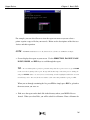
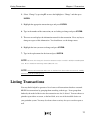
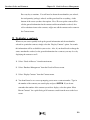
NOTE - STEP 14 uses Style #
as the method to pick the items sold to the client. You may however use
whichever method is convenient for you. If you want, you may use Color to select a certain item and
Description to select another one, or some other combination of methods.
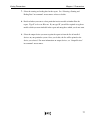
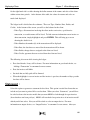
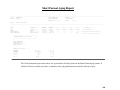
NOTE - Out of all the methods available to select the merchandise, Vendor is slightly different.
When
you move the highlight to Vendor, a list of all the vendors appears. Select the appropriate one and press
ENTER. A list showing all the items bought from that vendor appears. This list replaces the list
mentioned in STEP 14.
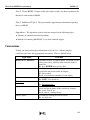
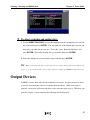
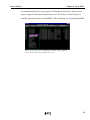
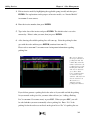
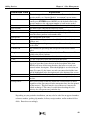
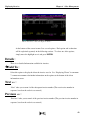
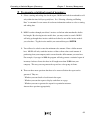
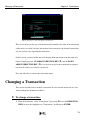
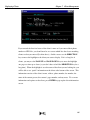
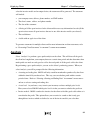
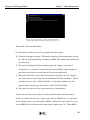
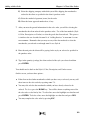
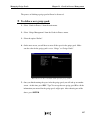
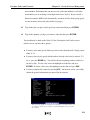
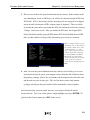
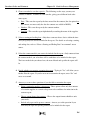
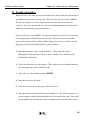
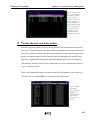
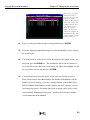
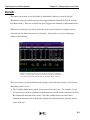
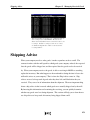
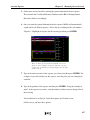
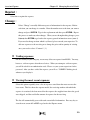
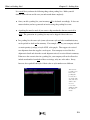
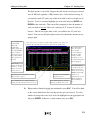
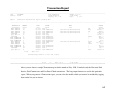
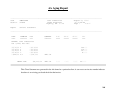
Here, you must
use one of the
four methods to
select the
merchandise
sold. As you
add items, they
are listed at the
top of the
screen and
below them a
running total
and quantity
(yardage) is
shown.
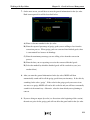
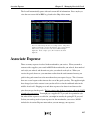
14.
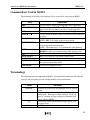
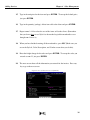
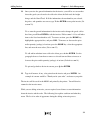
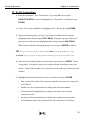
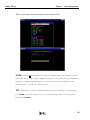
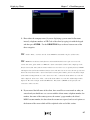
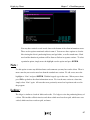
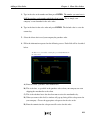
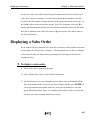
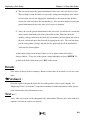
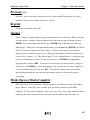
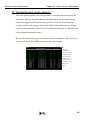
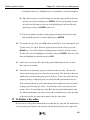
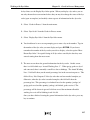
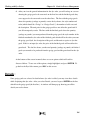
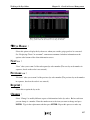
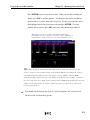
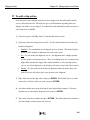
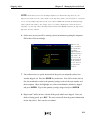
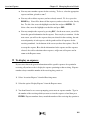
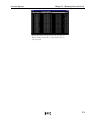
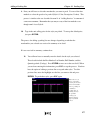
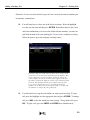
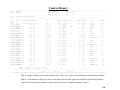
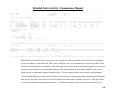
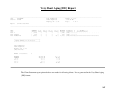
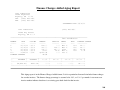
Under “Style #,” enter the style number of the item sold to the client and press
ENTER. A list will come up showing the style number and all the colors available
for that style. Move the highlight over the one you want. While the highlight is
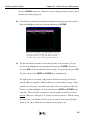
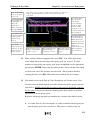
over it, you will be able to see some information about it. On the right side, there is
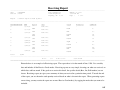
a chart showing the purchase activity of that style. In the middle of the screen, the
purchasing history of that style by the client is shown. The price description,
vendor, and all notes on the style are located at the bottom of the screen. After you
have finished viewing this information, press ENTER.
TIP - If you cannot find a particular style, try entering fewer digits or letters under Style #, Color, or
Description.
37