1
Transferring Goods
Chapter 10 Goods in Process Management
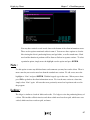
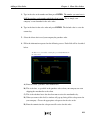
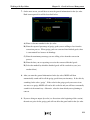
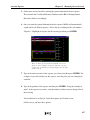
8. Enter the general information requested for the transfer on the next screen. This
information consists of a reference number, a bill of lading number, and the method
the merchandise which will be transferred will be shipped by.
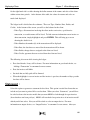
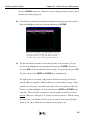
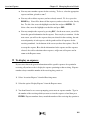
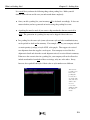
9. On the next screen, you will have to select the merchandise which you want to
transfer. This process is similar to the one in “Adding a Packing List” in CHAPTER 12:
PACKING LISTS.
The only difference is that you will not be entering prices for the
goods you are transferring. Begin at STEP 9 in “Adding a Packing List” and perform
all steps up to the end of the section.
To display a transfer/move:
1. From the Transfer/Move menu, select the option “Display Transfer/Move”.
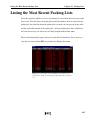
2. Enter the number of the transfer you want to display. If you do not recall the transfer
number, try listing the most recent transfer/moves.
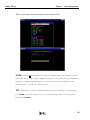
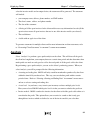
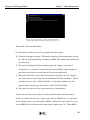
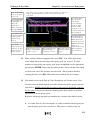
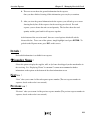
3. The next screen will show you the general information for the transfer. After you
have viewed this information, press any key to continue.
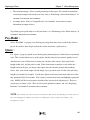
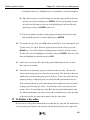
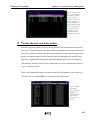
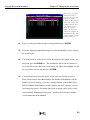
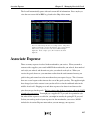
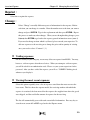
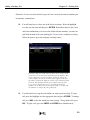
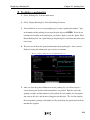
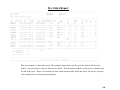
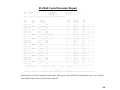
4. After you view the general information for the transfer, you will end up on a screen
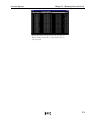
showing line by line the goods which you transferred. Each line shows the quantity
(yardage) and the number of rolls shipped, the style number, the description, and the
color of the style (if you shipped greige goods, the color field should be “Greige”).
The last line shows you the total quantity (yardage) and the total number of rolls
shipped to the location you selected.
143