1
Chapter 10: Debugging and Monitoring
1
2
3
D
5
6
7
8
9
Monitor with Data View
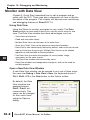
Chapter 2, Quick Start, described how to edit a program and go
online with the PLC. There was also a discussion on how to monitor
the status of the program. This chapter will discuss more monitoring
and debugging features of DirectSOFT 6.
Using Data View
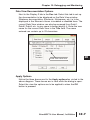
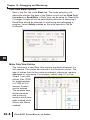
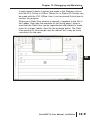
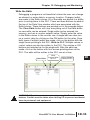
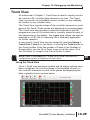
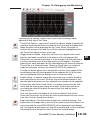
Using the Status to monitor a program is very useful. The Data
View window is more useful since you can do much more in one
view. The Data View window has more advantages, such as:
• View status of elements.
• Read and write data values.
• Multiple Data Views can be open at the same time.
• Since they “float”, they can be placed at convenient locations.
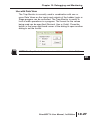
• Data View is also conveniently docked by default, and can be set to autohide by clicking on the push-pin. Multiple Data Views can be tabbed
together as one dockable or floating window.
• Use Data View to monitor the program all views (ladder, stage,
mnemonic) on the same screen.
10
11
2
13
4
A
B
C
D
• The Data View window can be saved by name.
• Data View windows are independent of projects, and can be used for
multiple projects.
Open a New Data View Window
10-2
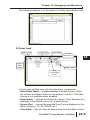
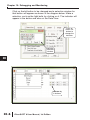
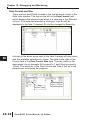
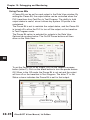
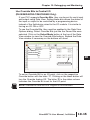
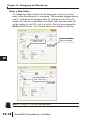
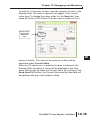
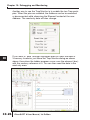
A new Data View window can be opened in any one of three ways;
the menu bar Debug > Data View > New, the keyboard shortcut
Ctrl + Shift + F3 or the Data button on the Online toolbar.
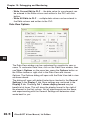
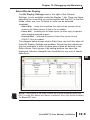
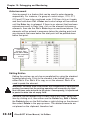
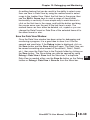
By default, the Data
View windows are
assigned names
Data1, Data2, etc.
consecutively. This
name can be changed
for the current view
using the Options
dialog.
DirectSOFT 6 User Manual, 1st Edition