1
Three-Dimensional Modeling
T-FLEX CAD System Operation Tips
Getting Help
There are several ways of getting answers to the questions arising during the work process, as follows:
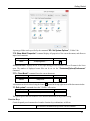
• Help on the current command can be accessed by pressing <F1> key or by selecting the menu
command “Help|Current”. When no command is active, pressing <F1> or selecting
“Help|Contents” invokes the help contents.
• While within a command, limited information is provided as prompts and hints in the status bar.
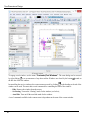
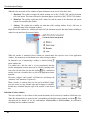
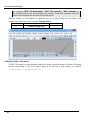
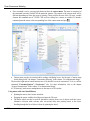
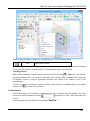
• Pop-up help appears by the icon buttons on a toolbar and by the graphic elements when the cursor is
briefly held pointing at an element or item. The pop-ups report the command or element name, the
type or parent operation of the element. Pop-ups messages are duplicated in the status bar at the
bottom of the system window.
Creating a New Document. Using Prototype Templates
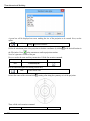
A new project begins with setting up the new document. Depending on the design intent one can select
appropriate initial options for the new model. To begin with a 2D drawing creation or other 2D construction
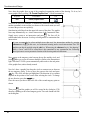
in 2D window use the command “FN: Create New Model”:
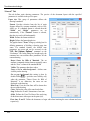
Keyboard
Textual Menu
<F><N>
or
<Ctrl><N>
“File|New 2D Model”
Icon
This will bring up the 2D window.
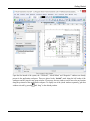
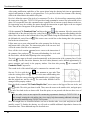
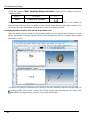
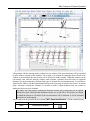
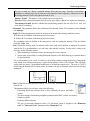
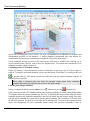
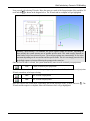
When beginning directly with a 3D model creation, use the command for creating a new file,
Keyboard
Textual Menu
<F><3>
“File|New 3D Model”
Icon
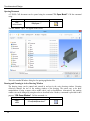
This brings up the 3D window with the standard set of workplanes.
Клавиатура
Текстовое меню
Пиктограмма
«Файл|Новый|2D
Сборка»
«Файл|Новый|3D
Сборка»
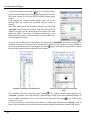
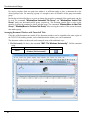
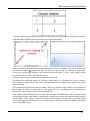
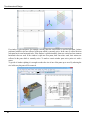
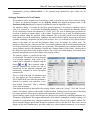
A new document is created using one of the prototype files whose names are defined via he command
“Customize|Options…”. These files may contain some useful elements and settings that will be created or
set in the new document. In the case the new document settings need to be changed, edit the prototype file
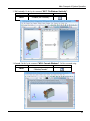
(such as, for instance, the ANSI drawing prototype file, named ANSI.GRB, or a 3D model prototype ANSI
3D Front Right Bottom Workplanes.GRB). These prototype files must be present in the folder
…T-FLEX CAD\Program\Template.
220