1
Web Access
1
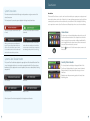
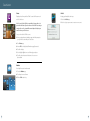
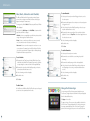
Zone Activity
Cameras
The current state of all security devices connected to your system
appears here. Click the device number to see the recent history.
Displays live video and enables you to capture manual pictures or
video clips from cameras installed in your home.
1. Click the clock icon next to the sensor name to see the recent
Viewing & Capturing Live Video and Snapshots
history.
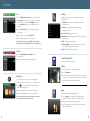
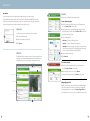
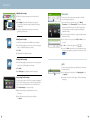
To view live video from the cameras attached to your system and take
snapshots or videos, click Cameras > Live Video on the toolbar.
2. Click Manage Zones to edit zone names and to turn zones off.
One of the cameras is displayed as live video. The other camera views
(not live video) are arrayed over it.
1
1. Click an image above the video to view live video from each
camera.
2. To take a snapshot with the currently selected camera, click
Take Picture.
2
3
2
3. To take a video clip (about 20 seconds) with the currently selected
camera, click Take Video Clip.
4. To delete snapshots or video clips, select one or more check boxes,
and click the trash can.
4
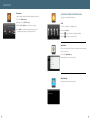
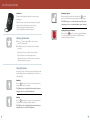
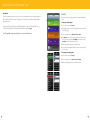
History
View recent security device activity, alarm events and more.
1. Use the scroll bar to view all of the 30 most recent events.
2. Click View History or click the History Tab to view all events or to
Viewing Captured Pictures and Video Clips
2
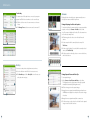
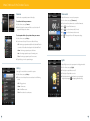
To view captured images:
sort by date and event type.
1. Select Cameras > Saved Pictures and Videos on the toolbar.
The displayed screen lists the pictures and video clips captured
manually and automatically (during alarm events).
1
5
2
2. Click on an image to view the captured images.
3. Images that were captured automatically during an alarm have an
ALARM button and display the security zone that cause the images
to be taken.
4. Images that were captured manually have a camera icon.
5. To delete an image or video, select the check box for each captured
image or video and click the trash can.
13
14