1
iPhone®/ iPod touch®/iPad®/Android® Access
2
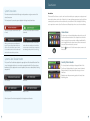
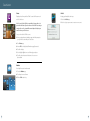
Cameras
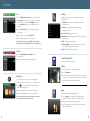
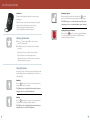
Thermostats
View live video or captured pictures and video clips.
Adjust all thermostats connected to your system.
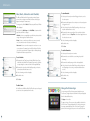
To view live video from your cameras:
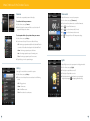
1. On the Home screen, tap [Thermostats].
1. On the Home screen, tap Cameras.
2. Tap the name of any thermostat to control that thermostat.
2. From the list, tap the camera you’d like to access. Live video will
3. Tap
to turn off the thermostat.
4. Tap
to set the thermostat to Cool mode.
5. Tap
to set the thermostat to Heat mode.
appear for that respective camera.
3
4
5
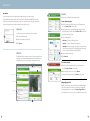
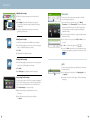
To view captured video clips or pictures from your cameras:
2
3
6. Tap
to change the Heat or Cool temperature setting.
6
1. On the Home screen, tap History.
2. Use the menu at the top of the screen to filter the History:
• All – View images captured manually from the Subscriber Portal or
as a result of a Schedule rule configured in the Subscriber Portal.
• Alarm – View images captured as part of an alarm.
• Arm – View images captured as part of an arming event.
• Zone – View images captured as part of a zone event.
3.Tap the listing to view the captured images.
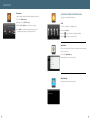
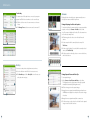
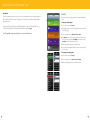
Lights
Adjust all lights connected to your system via the plug-in modules.
1. On the Home screen, tap [Lights].
History
2. If the light is on, tap bulb to turn it off.
View a log of events that have occurred in the system.
2
3. If the light is off, tap bulb to turn it on.
1. On the Home screen, tap History.
2. Choose to view a history of recent events based on the following
4. If the light includes the dimmer function, you can adjust its
2
brightness by tapping
criteria:
and tapping preferable setting.
• All – All logged events.
• Alarm – Alarm events.
• Arm – Arm/Disarm events.
• Zone – Events related to security zones
21
4
22