1
THE PROPERTY DATABASE
21
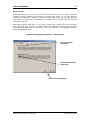
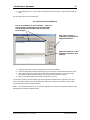
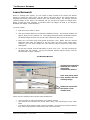
If your property has 100 units, then your lease database will eventually grow to 100 units over
time. The list box is there to help you find the units already in your database when entering a
new lease. Notice that as you type in the unit number, the software automatically finds the
nearest match in the list box. If the unit is not in the database and you need to add it, the
software will automatically create it for you. The next time you create a lease for that same
unit it will appear in the list box.
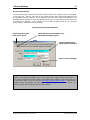
If you are entering a lease for a unit that is already in the database, and you see it on the list
box, you can simply double-click on that unit to enter the lease. Or you can click in the list
box to select that row, then click on the OK button.
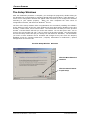
The Unit list box contains several items of information for each existing unit: the unit number,
the name of the resident, and the expiration date of the lease. If the lease is a prelease, you
will see "PL" between the unit number and the resident's name. This information will quickly
let you find a unit. The address of the unit that has been selected will appear just below the
Unit list box. Below this there is a check box if you need to create a prelease. Once you have
finished entering the lease, click the OK button or press <Alt>-<O> to save it. If instead you
want to discard the lease without saving it, click the Cancel button.
Creating Preleases
To prelease a unit:
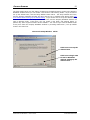
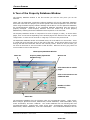
1. First, click the New Lease button, just like a regular lease.
2. Next, enter the unit number.
selected in the Unit list box.
Notice that the unit number will be automatically
3. Once the unit is selected, click the Prelease check box.
4. Click the OK button, or press <Enter>. The New Lease window will close, allowing you
to continue working in the lease database in Edit mode.
Once you have finished entering the prelease, click OK or press <Alt>-<O> to save the
information.
Important Note: You cannot create a prelease for a unit that is not in the database.
You can only prelease a unit that has a current lease.
Dealing with Duplicate Unit Numbers
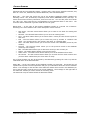
In some cases you may have a property that uses the same unit number more than once. If
you have already entered that unit number and need to add another unit with the same
number but a different address, simply click the Duplicate Unit button at the bottom left of the
New Lease window.
To distinguish between identical unit numbers in the Unit list box, select the unit row in the list
box and look at the address field below the list box.
To exit the New Lease window without creating a new lease, press the Cancel button or hit
<Escape>.
Edit Mode
Once you are out of the New Lease window and back into the Database window you will be in
the database's Edit mode. Instead of the regular row of buttons on the right (New Lease,
TAA FORMS FOR WINDOWS - USER’S GUIDE
BLUE MOON SOFTWARE