1
Setting and Getting Data from the Dialog
When AcroDialogs generates the dialog JavaScript it adds some extra code to make using the
dialog easier. Basically it adds two things: a function for activating the dialog, and member
variables for each data element on the dialog. The member variables are for initializing the data
elements and capturing the data after the dialog is closed.
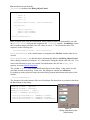
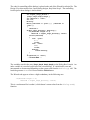
At the end of each dialog JavaScript file is a working usage example for the dialog. Figure 18
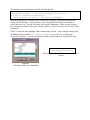
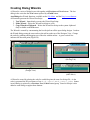
shows a simple dialog, along with the property list (Figure 19) for the selected element and the
example code that appears at the end of its JavaScript file. The dialog contains a single data
element, the selected Edit Box. The variable name property for this element is set to
strData1. This is the variable external code will use to access the data element.
Figure 19
Figure 18
// Example Code
JSADMDlg3.strData1 = "Hello There";
if("ok" == JSADMDlg3.DoDialog())
{
console.println("edt3:"+JSADMDlg3.strData1);
}
In this example, the initial value for the edit_text data element is set in the first line of code.
JSADMDlg3.strData1 = "Hello There";
JSASMDlg3 is the name of Dialog Object Literal and strData1 is the variable that
represents the data element. The second line of code activates the dialog with the DoDialog()
function and tests the return value when the dialog is closed:
if("ok" == JSADMDlg3.DoDialog())
The dialog generally returns the ID of the button that closed the dialog, either ok or cancel. In
Acrobat 7 the dialog function dialog.end(strRtn) closes the dialog and returns the
strRtn parameter. This functionality doesn’t work properly in Acrobat 6.
The data variable is only set if the dialog was closed with the ok button. The new value is
retrieved with the same JSADMDlg3.strData1 variable that was used to set it. In the
example this value is printed to the console window.