1
Ocularis Installation & Licensing Guide
3.
Licensing Ocularis Base
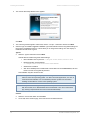
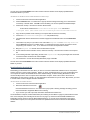
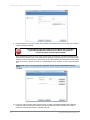
Click the Activate License button. You will receive a pop-up with the message reminding you that there is
no internet connectivity and you should use offline activation. Click OK to close this dialog. The screen
updates with additional steps:
Figure 11 Additional Steps for Offline Licensing
4.
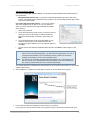
Click the link in Step 2: Click here to retrieve offline html file.
An html file is created named OcularisActivationRequest.html and stored in:
c:\Program Files (x86)\OnSSI\Ocularis Licensing Activation\OfflineActivation
5.
Copy this file to portable media and bring to a computer that has internet connectivity.
6.
Launch the OcularisActivationRequest.html file (double-click it).
7.
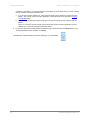
The default web browser should launch and load a page with a Download button. Click the Download
button.
8.
The browser may ask you if you want to save a file called response.xml from licensing.onssi.com.
Choose Save As and save it to portable media.
9.
Bring the response.xml file back to the Ocularis Base computer.
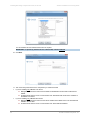
10. On the Ocularis License Activation screen (see Figure 11), click the link in Step 3: Click here and browse to
the response file.
11. In the resulting Windows’ Open dialog, browse to the response.xml file you just brought from the internet
connected machine. Select the file and click Open.
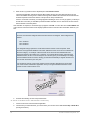
12. You should see a ‘License Activation Successful’ pop-up. Click OK.
You are done! The License Status area of the Ocularis License Activation screen displays updated camera
counts and other information based on your SLC. The ‘Activate License’ changes to ‘Refresh’ to accommodate
future updates.
Proceed with Installing Ocularis Components below.
Refreshing the Ocularis SLC
Refreshing your Ocularis SLC is done when a change is made to your Ocularis License. For instance, you add
additional camera licenses to Ocularis or you upgrade from a demo version to a retail version. Refreshing is simple
but the process differs, depending on the Ocularis Base computer having internet connectivity.
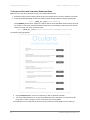
To Re fre s h a n Oc u la ris lic e ns e with In te rn e t Co n ne c tivity
1.
Launch the Ocularis License Activation application.
2.
Click the Refresh button. The licensing application will collect relevant data including the SLC and send
this over the internet to OnSSI’s licensing server. OnSSI’s licensing server validates the information and
sends back the activation required to license the software. This process is nearly instantaneous.
Once activation is complete, a confirmation pop-up appears. Click OK.
On-Net Surveillance Systems, Inc.
19