1
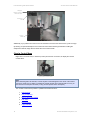
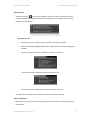
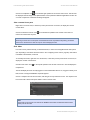
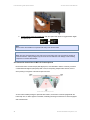
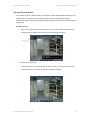
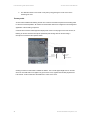
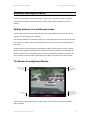
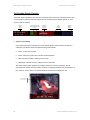
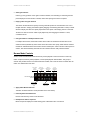
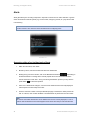
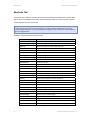
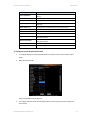
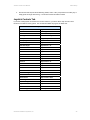
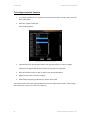
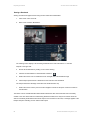
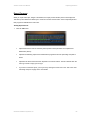
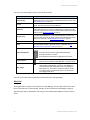
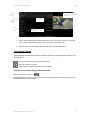
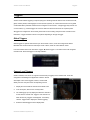
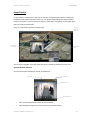
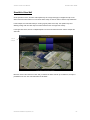
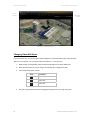
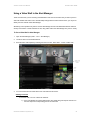
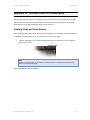
Alerts Ocularis Client User Manual Accessing Stored (Handled) Alerts Once alerts have been handled, they can be accessed at any time. From the menu bar select: Views Tools Handled Alerts. The result is a list of all handled alerts. Accessing Handled Alerts Note: The ability to view handled alerts is controlled through the user account. If you have trouble viewing handled alerts, see your system administrator for assistance. The upper portion of the screen shows the recorded video clip that was captured during the event. Click the thumbnail of the event to populate this area. Use the Kinetic Timeline or timeline tools to navigate the video clip. In the event that there are multiple cameras associated with an event, the thumbnail will display a filmstrip icon. The video shown will be that of the primary (first) camera in the group. In the event that the event was handled via the ‘Batch Handle’ function by the system administrator (this is performed in the Ocularis Administrator application), the thumbnail shown will be that of a plain camera. Click this icon to see the video from the primary camera associated with the event. In the lower half of the screen, a table is displayed with each row representing a handled alert. The following columns are provided in the table: Reload Click the icon to refresh the list and view alerts handled by others in your user group (pending privileges) while viewing this screen. Expand / Collapse Click to expand row detail Click to collapse row detail On-Net Surveillance Systems, Inc. 77