1
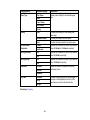
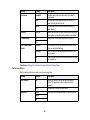
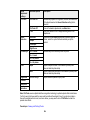
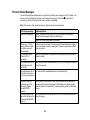
LCD screen message
Condition/solution
No dial tone detected.
Try the Check Fax
Connection.
Make sure the phone cable is connected correctly and the phone line works.
If you connected the product to a PBX (Private Branch Exchange) phone line
or Terminal Adapter, turn off the Dial Tone Detection setting.
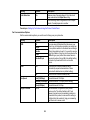
Combination of IP
address and subnet
mask is invalid. See
your documentation.
There is a problem with the network connection to your product.
Recovery mode
An error has occurred during firmware updating. Connect your product using
a USB cable and try downloading the Firmware Update from Epson's support
website. If you still need help, contact Epson for support.
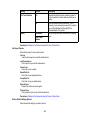
Note: The ink pads in the printer collect, distribute, and contain the ink that is not used on printed pages.
During the life of your product it may reach a condition where either satisfactory print quality cannot be
maintained or the ink pads have reached the end of their usable life. The EPSON Status Monitor, your
LCD, or lights on the control panel will advise you when these parts need replacing. If this happens
during the standard warranty of the product, the exchange of the product or replacement of the pads is
covered under the standard warranty. If the product is out of warranty, the pads can be replaced by any
EPSON authorized service provider. The waste ink pads are not a user-serviceable part.
Parent topic: Solving Problems
Related tasks
Checking for Software Updates
Related topics
Replacing Ink Cartridges and Maintenance Boxes
Loading Paper
Running a Product Check
Running a product check helps you determine if your product is operating properly.
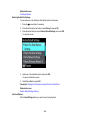
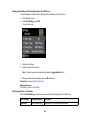
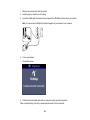
1. Disconnect any interface cables connected to your product.
2. Load plain paper in the product.
3. Press the
home button, if necessary.
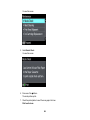
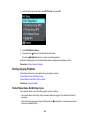
4. Press the left or right arrow button, select Setup, then press OK.
261