1
Grading
Grade Activities
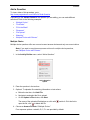
At any time after a student completes and submits an online activity, you can begin grading it.
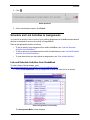
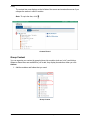
Note: Before starting your grading, if you want to filter the grading queue to
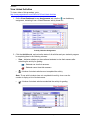
display only specific activities to grade, see “Select Activities to Grade.”
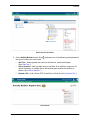
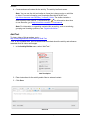
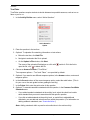
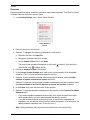
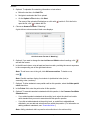
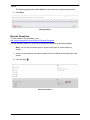
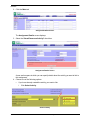
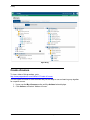
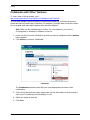
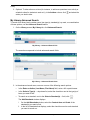
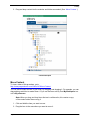
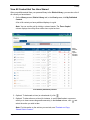
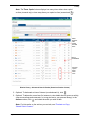
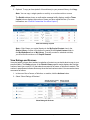
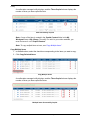
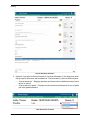
1. On the Activities to Grade screen, select an activity to grade by clicking the student’s
name.
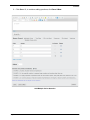
Select Activity to Grade
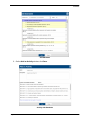
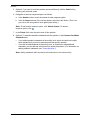
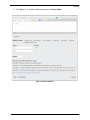
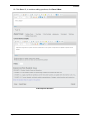
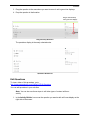
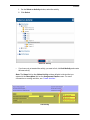
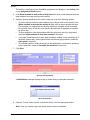
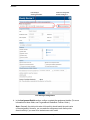
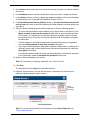
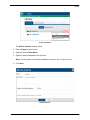
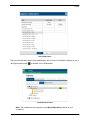
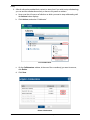
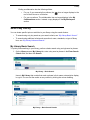
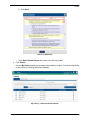
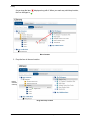
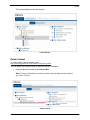
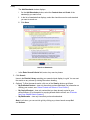
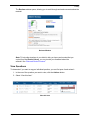
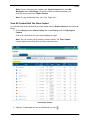
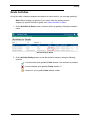
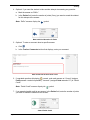
2. On the Activity Grading screen, review the student’s answers, noting the following
symbols:
– Correct answer (auto graded); Points earned = the maximum of possible
– Incorrect answer (auto graded); Points earned = 0
– Answer for you to grade; Points earned = blank
ProgressBook VirtualClassroom Teacher Guide
79