1
Student Information
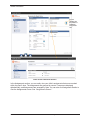
The Student Information section allows you to view your child’s information. The screens available
for viewing are as follows:
•
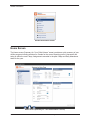
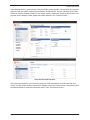
Home Screen – Provides a summary of your child’s progress including sections for
Grades for the current reporting period, Homework due today or within the next 2 days,
Assignments recorded in the past 2 days and Daily Attendance totals for the year. See
“Home Screen.”
•
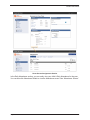
Attendance Screen – Provides detailed information about your child’s attendance
including Date, Absence Type, Reason, if a reason was entered, Attendance Comments,
if a comment was entered, and Arrival and Dismissal Times, if they exist. The information
displayed is live from your child’s school district’s student information system. The default
view is by date for the entire school year. You can also view attendance by reporting
period. See “Attendance Screen.”
•
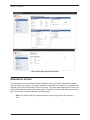
Grades Screen – Provides detailed information about your child’s grades for a reporting
period including Course, Grade and As Of date. The courses are links, so you can easily
navigate to your child’s assignments for that course. See “Grades Screen.”
•
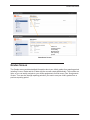
Assignments Screen – Provides detailed information about your child’s assignments for
a course. For standards-based (elementary) courses, the default view is by assessment,
but you can also view by assignment type and assessment summary. For traditional (high
school) courses, the default view is by assignment type, but you can also view by date. At
the top of the screen, you can select your child’s other courses, and you can select
different reporting periods. See “Assignments Screen.”
•
Homework Screen – Provides detailed information about your child’s homework. The
default date range is from today through the next 2 days, but you can change the date
range. The default view is by due date, but you can change it to by class. You can also
email the teacher from the Homework screen. See “Homework Screen.”
•
Schedule Screen – Provides detailed information about your child’s schedule. The
default view is for the current day, but you can change the date. You can also email the
teacher from the Schedule screen. See “Schedule Screen.”
•
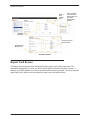
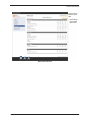
Report Card Screen – Provides detailed information about your child’s report card. It
displays your child’s grade level, school year and marks for reporting periods. You can
change the report card if your school uses more than one report card, such as an interim.
See “Report Card Screen.”
ProgressBook Beta ParentAccess User Guide
15