1
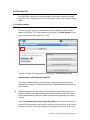
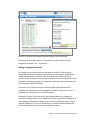
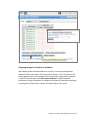
one sample. Dissociating a file from a sample does not delete the file from the
Partek Flow server.
Import samples from another project
This method adds samples from previously created projects (within the same
Partek Flow server) to a new project. This option is useful for re-analyzing a
dataset in a new project, analyzing a subset of a data from a previous project, or
combining data from different projects
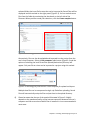
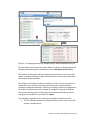
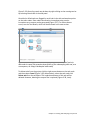
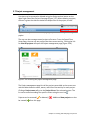
Select the Import samples from another project button. A dialog box will allow
selection of the samples (Figure 3-6). The dropdown menu of Project lists the
existing projects that the current user has access to. They may be previous
projects from the same user, previous projects from collaborators, or (if the user
has an administrative account) all the projects in the Partek Flow server.
Click the Project dropdown menu to select an existing project. In the Samples
box, you will find a list of samples from the selected project. Choose the samples
you wish to add to your new project by highlighting them using your mouse. If
needed, use the keyboard Ctrl- or Shift- key to select more than one sample.
Once you make your selection, click the Add button. These samples will now
appear in the sample management table in the Data tab.
Figure 3-6: Selecting samples from other projects (showing two files selected)
Create a new blank sample
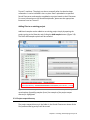
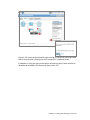
Samples can be added one at a time by selecting the Create a new blank sample
option (Figure 3-7). In the following dialog box, type a sample name and click
Chapter 3 : Creating and Analyzing a Project 6