1
Assigning attributes using a Sample Annotation Text File
Another way to assign attributes to samples in the Data tab is to use a text file
that contains the table of attributes and categories/values. This table is prepared
outside of Partek Flow using a text editing software capable of saving tabseparated text files.
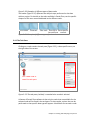
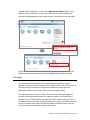
Using a text editor, prepare a table containing the attributes. An example is
shown in Figure 3-16. There should only be one tab between columns with no
extra tabs after the last column. In this particular example, the first column
contains the filename and the text file is saved as Sampleinfo.txt.
Figure 3-16: A sample annotation text file. This view has the non-printing
characters visible to show the tab stops. Appearance will vary depending on the
text editor used.
The first row of the table in the text file contains the attributes (as headers). The
first column of the table in the text file, regardless of the header of the first
column, should contain either the sample names or the file names of the
samples already added in Partek Flow. The first column is the unique identifier
that will match the samples to the correct values or categories.
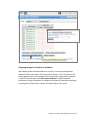
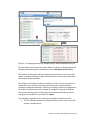
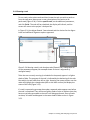
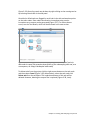
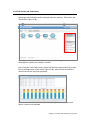
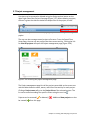
In an example in Figure 3-17, there are 10 samples that have been added to the
project, but attributes have not yet been assigned. To use the sample annotation
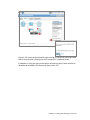
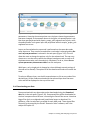
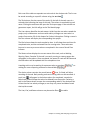
file prepared in Figure 3-16, click Assign sample attributes from a file in the Data
tab. In the following file browser, indicate if the text file is stored in My
computer. If so, locate the file, and then click Next.
Chapter 3 : Creating and Analyzing a Project 17