1
Administrator notes
Administrator notes
Information in the following sections is in general not necessary for a typical
user of the emulator, but will be needed by those setting up 'useful' configurations for their users, and for advanced usage in some circumstances.
Glink MSI Installation
Overview
Glink 8.1 versions and above are delivered as digitally signed .EXE bootstrapped
Microsoft Windows Installer MSI installation packages. To install Glink simply
execute the Glink installation bootstrap program. NOTE: under Windows Vista,
the installation procedure will always prompt the user for administrator
privileges regardless of the type of installation.
'Per user' installations will install all Glink files to the user's %MyDocuments%
location and all Glink icons to the user's Start menu or Desktop. All Glink
registry entries will also be placed in the users registry. No other users will see or
be able to execute that copy of Glink. 'All users' installations on the other hand
install all Glink files to globally accessible locations. The main Glink files are
installed to %ProgramFiles% and the icons to the 'all users' start menu and
Destop. Registry entries will be written to global entries. For details on the actual
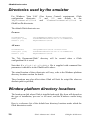
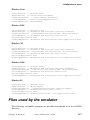
locations of these directories, refer to the following Directories used by the
emulator and Windows platform directory locations sections.
In both 'per user' and 'all users' installations, Glink will by default save
configuration files to the user's %MyDocuments%\Glink directory (/U). If
this directory does not exist, then the user will be prompted to create it when
required. If user files do not exist in the users directory, then Glink will look in
the %CommonDocuments%\Glink or GlinkExecDir directory (/CD)
Please refer to the Creating Glink Packages chapter for details on creating fully
customized, Glink packages, including adding Glink configuration files and
icons.
Gallagher & Robertson
Glink: Administrator’s Guide
243