1
System Tray Icon
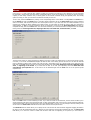
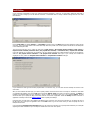
The CommTraffic tray icon can be customized to display the tool tip window with basic traffic statistics when you move the mouse
over the icon. You can configure this window by right-clicking on the CommTraffic tray icon and selecting Icon => Customize.
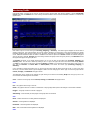
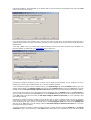
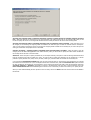
Select the Advanced radio button and click Customize in the Icon Options window. In the Advanced Tool Tip window you will
be able to configure the number and type of counters that will be displayed when the mouse is moved over the tray icon. Each item
on the drop-down list has a number in brackets that represent the number of counters to display. The counter names are listed
below. To add a new counter, click on the Add button and select it from the list. If you would like to remove a counter, select it
with a mouse click and click on the Delete button. You can move the counters up and down in the list by clicking on the
corresponding button.
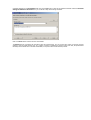
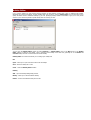
You can adjust the time interval before the tool tip window is shown or hidden by changing values in the Show delay and Hide
delay fields in the Icon Options window.
The tray icon itself may appear as a standard program icon or as graph representing the current Incoming, Outgoing, or
Summary traffic. Select one of the bottom radio buttons (Incoming, Outgoing, or Summary) in the Icon Options window to
change the type of traffic that the icon displays. To change the appearance of the tray icon right click on it and select Icon => As
Graph.
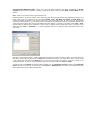
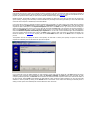
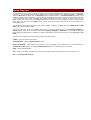
Right-click on the program icon in the system tray brings up the following menu:
Toolbox – opens the program main window.
Floating monitor – opens the Floating Monitor window.
Start with Windows – when checked, the program will start automatically when Windows starts. This option affects the
CommTraffic Console window; the invisible CommTraffic Service will run on Windows boot-up in any case.
About – shows the About window.
Icon – allows you to change the appearance of the Icon and the actions that it performes when the mouse is moved over it.
Exit – closes CommTraffic Console.