1
Connecting to the Adept Controller
2.4
Connecting to the Adept Controller
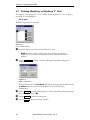
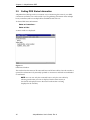
To connect to the Adept controller (host):
1. Start AIM on the Adept controller.
NOTE: The DDE driver must be enabled. See section 2.6 and section A.5
for details.
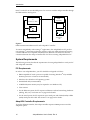
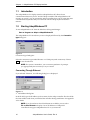
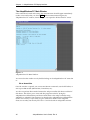
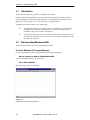
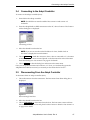
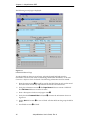
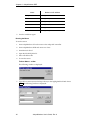
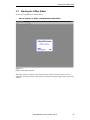
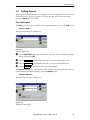
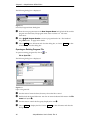
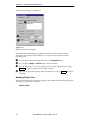
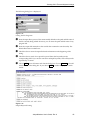
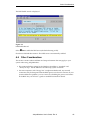
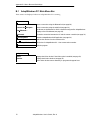
2. From the AdeptWindows DDE main menu on the PC, choose Connect. The Connect
to Host dialog box is displayed:
Figure 2-4
Connecting to Host
3. Select the desired host from the list.
NOTE: If you are not sure about the IP address of a host, double-click on
the name to display the host information.
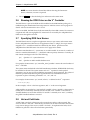
4. Choose Connect to make the connection. Once a host is connected to V+, the name
is removed from the connect list and placed on the disconnect list in the Disconnect
From Host dialog box. See section 2.5 on page 27 for details.
5. Choose Done to close the dialog box and return to the main menu.
Once you set up the host name and connect to a V+ host, you can basically ignore the
AdeptWindows DDE server until you are ready to disconnect the PC from V+.
2.5
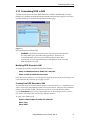
Disconnecting From the Adept Controller
To disconnect from an Adept controller (host):
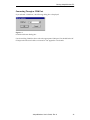
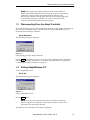
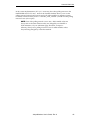
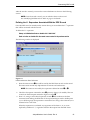
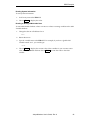
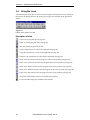
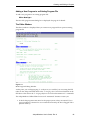
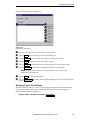
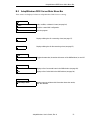
1. Choose Disconnect from the main menu. The Disconnect From Host dialog box is
displayed:
Figure 2-5
Disconnecting From Host
2. Select the desired host from the list.
3. Choose Disconnect to disconnect from the host. The host name is removed from
the Disconnect From Host list and placed on the Connect to Host list. See section 2.4
on page 27 for details.
AdeptWindows User’s Guide, Rev. A
27