1
5.5
Viewing of Document Upload with PaperWork
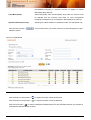
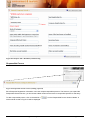
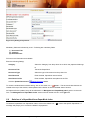
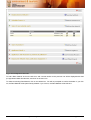
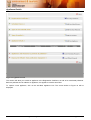
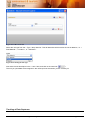
To view the document Uploaded with the PaperWork, Click on the “View” link <
PaperWork. Document will be displayed in new window.
5.6
> next to the specific
Moving of PaperWork from One Hard Copy File to another Hard Copy File
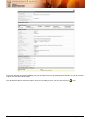
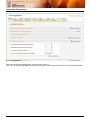
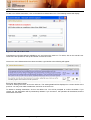
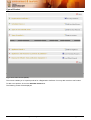
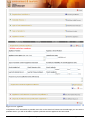
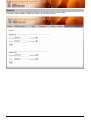
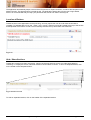
This section allows moving the PaperWork from One Hard Copy File to another Hard Copy File. To move the
> next to
Paperwork from one Hard Copy File to another Hard Copy file, Click on the “Move PaperWork” link <
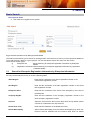
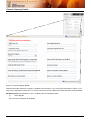
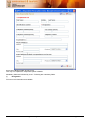
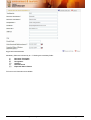
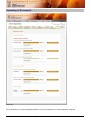
the specific PaperWork. A screen similar to that in ref. Figure 23 will be displayed.
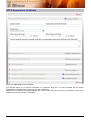
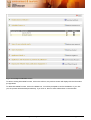
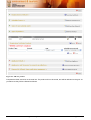
Figure 23: Moving of Paperwork
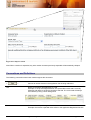
Mandatory fields are indicated by a red *. Following are mandatory fields:
(i)
Move to Tracking Number
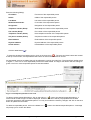
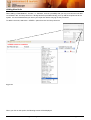
Select the Tracking No. from the list of tracking numbers displayed in “Move to Tracking Number” drop down list
which lists all the tracking numbers of hard copy files except the tracking no. to which the PaperWork belongs to.
Click the Move Document <
Move Document > icon
Close>. The save and close buttons are
To close the window/cancel without saving, click on the close icon <
located at the top of the window, and duplicated at the bottom as well to facilitate ease of access.
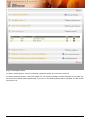
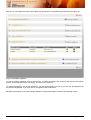
The PaperWork moved will be removed from the list of existing Hard Copy File and will be displayed under the list
of Hard Copy File to which the PaperWork has been moved.
5.7
Updating of PaperWork
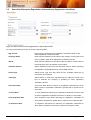
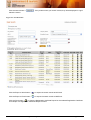
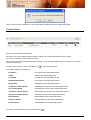
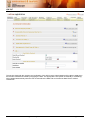
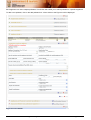
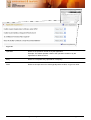
This section allows updating the details of the PaperWork already added to the PaperWork Index. To update the
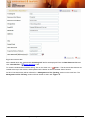
details of the PaperWork, Click on the “Edit” link < > next to the specific PaperWork. A screen similar to that in
ref. Figure 24 will be displayed.
User Manual – APPA Certificate Registration System
Page 25 of 64