1
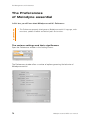
Displaying, navigating and playing back audio Resizing the window
To change the size of the window, click and drag the bottom right-hand corner.
Controlling playback using the onscreen controls and the
keyboard
Melodyne essential is integrated into Pro Tools and remains perfectly in step
with it during playback. When you reposition playback cursor in Pro Tools, this
information is conveyed to Melodyne essential, which mirrors the new position. As
soon as Pro Tools starts, Melodyne essential also starts. It is, so to speak, forever
the ‘slave’ to Pro Tools. It is not possible to start, stop or reposition Pro Tools’
playback cursor from within Melodyne essential. As soon as Melodyne essential
has been opened and is in the foreground, you can use the [Shift, Alt, Command]
keys as well as the [Arrow] keys for working within Melodyne essential, but all
the transport functions and keyboard commands of your computer keyboard will
continue to govern Pro Tools.
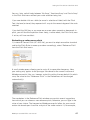
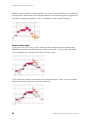
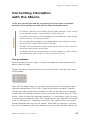
You can select successive blobs in the display by stepping through them with
the Arrow keys on the computer keyboard. As each blob is selected, the tone it
represents will sound.
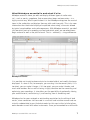
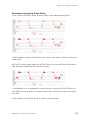
Controlling playback and scrubbing using the Bar Ruler
These functions are only available when Pro Tools is stopped. As soon as Pro Tools
starts again, Melodyne essential reverts to the ‘slave’ status described above and
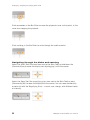
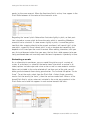
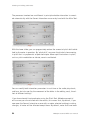
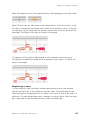
resumes its shadowing of Pro Tools. Double-click in the Bar Ruler (or, alternatively, directly on the editing background)
to commence playback from the position in question. If you hold down the [Alt]
key as you double-click, playback will be confined to the current selection.
Melodyne essential RTAS user manual
21