1
03-02 Editing the pitch
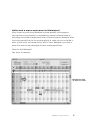
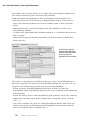
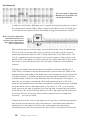
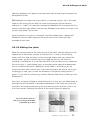
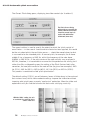
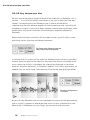
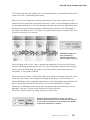
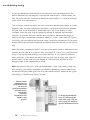
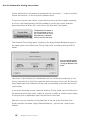
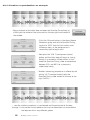
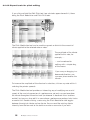
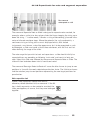
Unless you were pretty ham-fisted or forgot to hold down the left mouse button (in
which case you ‘moved’ the pointer rather than ‘dragging’ it) you should find that
all the notes within your imaginary rectangle have lost their creamy yellow
tummies; this means they have been selected, and when you move any one of
them, they will all move — en bloc. Try it: drag any one of the selected notes
upwards or downwards. That’s how easy it is to transpose a phrase in Melodyne
uno; and transposing an entire file is even easier: instead of rubber-banding the
blobs, use the shortcut [Command]+[A] to select all of them instantly.
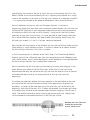
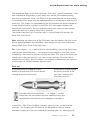
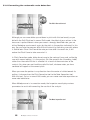
Tip: when you have loaded a really long file, the blobs may be too small to be
easily manipulated; in this case, click on the Horizontal and Vertical ‘Zoom In’
icons in the bottom right-hand corner of the screen to increase the display
resolution.
When you transpose a note or series of notes over some interval larger than a
semitone — a fifth, say — you will notice that the characteristic timbre of the
source, be it a voice or instrument, is preserved: instead of the dreaded
‘Chipmunk’ or ‘Darth Vader’ effects of conventional transposition tools, you get
something that sounds remarkably similar to the same voice singing, or the same
instrument playing, in a different register.
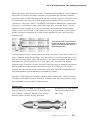
If you are familiar with the acoustic principles at work here, you will have guessed
why this is so: when it transposes audio, Melodyne uno leaves the formants (its
acoustic fingerprint, if you like) where they are, thereby obtaining a far more
realistic effect than conventional pitch shifters, which simply increase or decrease
the frequency of the waveforms, moving the formant structure into the bargain.
Note: it can happen from time to time that Melodyne uno fails to identify correctly
the intended pitch of a note, usually confusing it with the same note an octave
higher or lower; in such cases, as we have seen, the error is easily corrected
manually with the Main tool in pitch-editing mode. This subject is dealt with in
greater detail in the section on correcting detection errors.
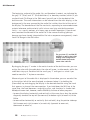
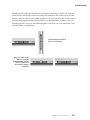
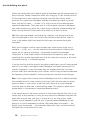
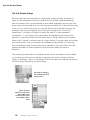
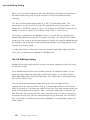
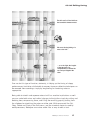
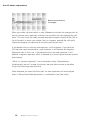
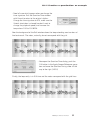
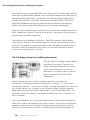
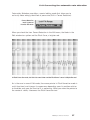
If the sound source is the human voice or an instrument like the violin that is not
always easy to play precisely in tune, you may notice that Melodyne uno plots the
exact pitch of each note, and that if, instead of a G, you sing or play a note
halfway in pitch between G and G#, that is precisely where Melodyne uno will
display it: on the line between G and G#. With some other instruments — the
digital piano, for example — the intonation looks after itself, and each blob will
land precisely in the centre of its lane.
32
Melodyne uno user manual