1
Images
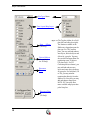
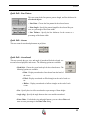
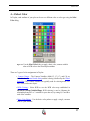
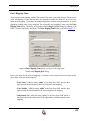
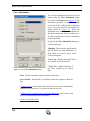
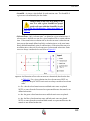
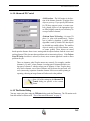
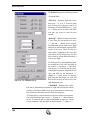
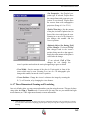
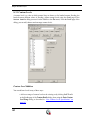
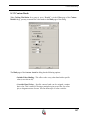
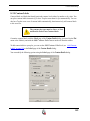
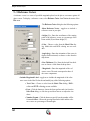
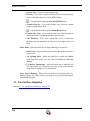
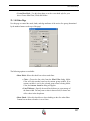
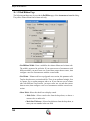
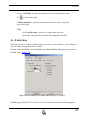
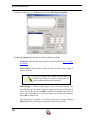
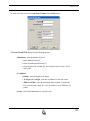
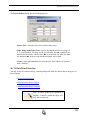
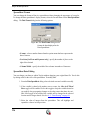
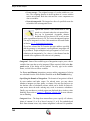
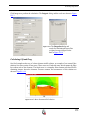
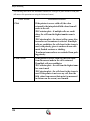
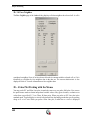
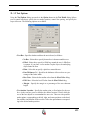
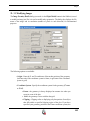
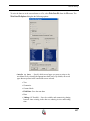
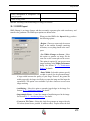
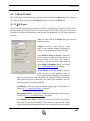
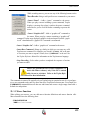
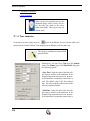
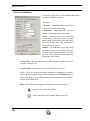
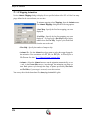
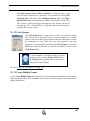
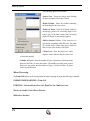
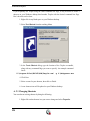
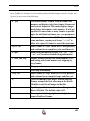
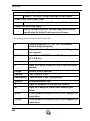
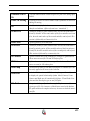
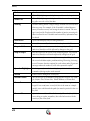
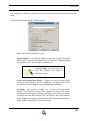
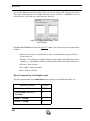
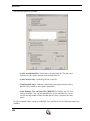
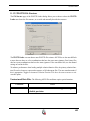
• Show in All “Like” Frames - Select this check box to display the geometry in
all frames sharing the current frame's data set.
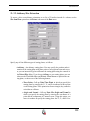
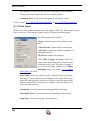
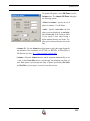
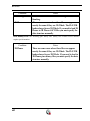
• Macro Function - In the text field, specify the name of the macro function that
you wish to link to a particular geometry
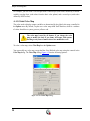
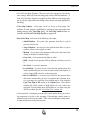
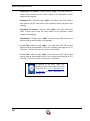
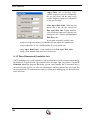
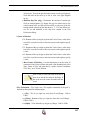
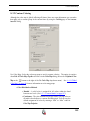
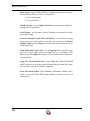
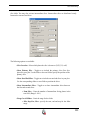
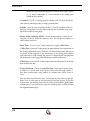
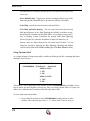
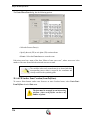
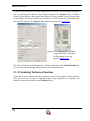
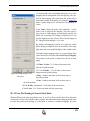
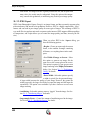
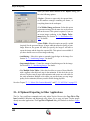
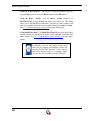
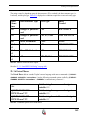
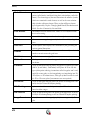
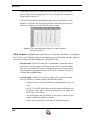
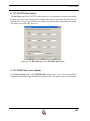
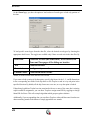
• Filter - The Resize filter determines how the image is resized to fit the screen.
The following filters are available-
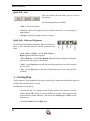
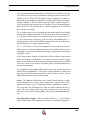
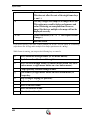
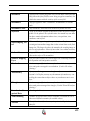
• Fast (textures) - default- Tecplot uses OpenGL textures to resize the
image. This is the fastest option (given sufficient graphics space).
However, the accuracy of the image may suffer, especially when
reducing an image to a size much smaller than it was before.
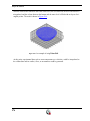
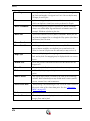
• Pixelated - Choose this option when the image is much larger than its
original size and you want to see the individual pixels. This option is
slower than the Fast (textures) for increasing the size of images.
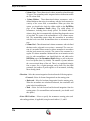
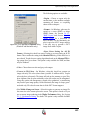
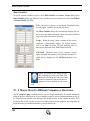
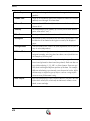
• Smooth - There are seven smooth options, all producing slightly different effects. These options are slower than the Fast (textures), but
produce better effects for highly reduced images. In general, use the
Smooth (Lanczos2) option unless you have specific image processing
needs
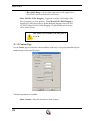
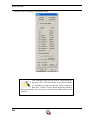
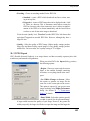
The resize filter has no effect on vector-based output,
only on the screen and for exported images.
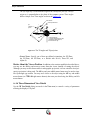
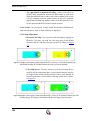
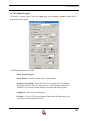
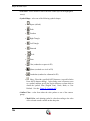
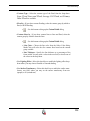
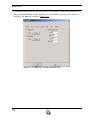
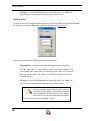
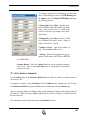
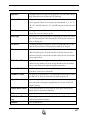
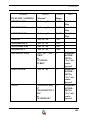
Line Color, Line Pattern, Pattern Length, Line Thickness and Fill Color are not available for images.
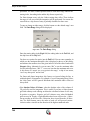
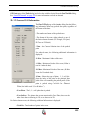
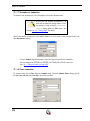
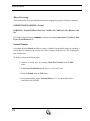
21- 3.2 Images and Tecplot Files
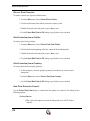
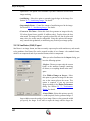
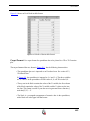
Images cannot be included in data files. When you save a data file, even if you specify to include
geometries, any images in the plot are not saved.
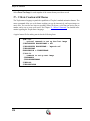
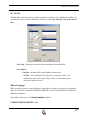
In layout and style sheet files, the image is referenced from its original location. This reference can
be a relative reference or an absolute (as with data files). See Section 22 - 1 “Layout Files, Layout
Package Files, Stylesheets” on page 448 for details.
For layout package files, images are included.
443