1
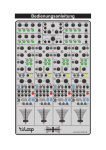
Seek / Scratch and Pitch Section
The Seek / Scratch encoders are used for coils in the decks. The track will be forwarded to the end by
turning the encoders clockwise, for rewinding back to the start, anti-clockwise. Push and turn the
encoder at the same time, scratches in the decks.
The Pitch encoders slow down or speed up the tempo of the track. The Pitch encoders offer the same
functionality as a pitch fader on any standard DJ turntable or pitchable CD player. To adjust the tempo
faster in steps, turn the encoder clockwise. To adjust the tempo slower, turn the encoder
anticlockwise. Push and turn the Pitch encoder at the same time, changes the tempo in small steps.
Additionally by pressing Shift, the Pan knob is controlled. With the Pan knob you can control the
balance between the left and right stereo channels for each deck individually.
Loop ctrl Section
To activate / deactivate a loop push the Active button. The Led indicates activation or deactivation of
a loop. Press the Size +/- Button to obtain higher or lower value of the loop length. Press the Size +
and Size – button at the same time, it will reset the loop lenght to one loop. The Res Led is lit.
Push the Shift and Active button, the loop is only active when the track runs in a loop.
The active loop with the chosen length of the track is moved back by pressing Move Bwd. Move Fwd
on the contrary, moves the active loop forward.
Loop or Fine can be activated by pressing the Shift button in the loop mode. If Loop is activated, the
loop will be moved a full Loop length. If Fine is activated, the loop can be moved in small
displacements.
Push the Shift and Size- button (In) to set the start point of the loop. Push the Shift and Size+ button
(Out) to set the end point of the loop. The track will begin to loop between these two points and the
Active Led flashes. To stop looping, press the Active button.
Hotcue Section
The hotcue section has eight Hotcue buttons numbered from 1 to 8. In Traktor, you can assign any
stored Cue Point or Loop to one of the 8 Hotcue buttons. This allows for instant access to your most
important Cue Points and Loops. Using stored Cue Points, you can mark specific positions in your
tracks; e.g. beginning vocals, instrumentals or breaks. Storing a Cue Point instantly maps it to the
next available Hotcue.
Further functions can be regulated by pressing the Shift button and the eight hotcue buttons:
With Panel +/- you can switch on the Move, Cue or Grid panel.
With Mode +/- you can switch in Move panel on BeatJump, Loop, Loop in or Loop out.
With Store you can store cue points, and with Delete you can delete it.
If you want to change the assignment; push the assigned Hotcue button, then push the Map and then
on the new Hotcue button.
With Type you’ll define the cue point type ( Cue, Fade in, Fade Out, Load, Grid or Loop).