1
*gajendra* D:/Thomson_Learning_Projects/Garrigus_163132/z_production/z_3B2_3D_files/Garrigus_163132_ch16.3d, 14/11/08/16:25:58, 16:26, page: 633
C h ap t e r 1 6
S t u d i o Co n t r o l wi t h St u d i o Wa r e and S ys x
633
To do a data dump, follow these steps:
1.
Choose View 4 Sysx to open the Sysx view and then click a bank to highlight it for
incoming System Exclusive data.
2.
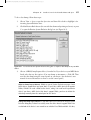
Click the Receive Bank button (the one with the downward-pointing red arrow) or press
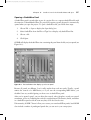
C to open the Receive System Exclusive dialog box (see Figure 16.2).
Figure 16.2 You use the Receive System Exclusive dialog box to request a data dump from your MIDI
device.
3.
Choose a DRM (Dump Request Macro) from the list. If you don’t see your MIDI device
listed, select the very first option: <You start dump on instrument4. Click OK. Then
start the data dump using the control panel on your device. (See the device’s user
manual for more information on how to use the control panel.)
What Are Dump Request Macros? DRMs are special System Exclusive messages. Some
MIDI devices support them and some don’t. If you have a MIDI device that supports
DRMs, SONAR can send a DRM to the device, asking it to send back its parameter
data. If you have a MIDI device that doesn’t support DRMs, you have to initiate the
data dump manually from the control panel on the device.
Adding New Dump Request Macros If your MIDI device isn’t listed in the Receive System
Exclusive dialog box, it doesn’t necessarily mean the device doesn’t support DRMs. You
need to look in the device’s user manual to see whether it has DRMs available. If it does,