1
8.4 Controllers
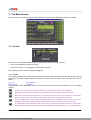
The parts response to continuous controller messages is edited using the controller section of the Effects
Module
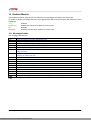
8.4.1 Controller Selection
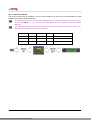
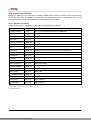
Controller selection is achieved using the controller list-box
For standard controllers, select the required item from the list-box (Modulation, Pitchbend, Channel
Aftertouch or Polyphonic Aftertouch).
For non standard controllers, first set Controller1 or Controller2 to the required controller value, then select
Controller1 or Controller2 from the controller list-box.
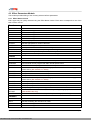
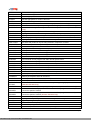
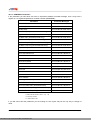
The XG module will respond to all continuous controller messages from 0 to 95. However, only those
controllers listed in the implementation chart have a ‘built in’ effect. All other controllers may only be used in
combination with the Controller 1/2 module settings.
If a voice is allocated to VL use on the MU100R/SW1000XG, then the controller section will also display the
VL controllers available for editing in accordance with the XG specification.
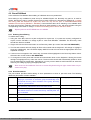
8.4.2 Controller Wheel
When altering the controller parameters, the module does not use the new value until it receives a message
from the appropriate controller. This can be annoying, as the relevant controller must continually be
adjusted in order to hear the affect of the edit. To overcome this, a controller wheel has been provided
within the Control module.
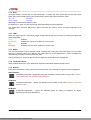
The Control Wheel may be adjusted with the mouse to set the required controller position (note the wheel
sends controller midi messages as per a standard synth based control wheel). If the LED below the wheel is
ON, then any edits performed within the control module, will automatically re-transmit the current wheel
position via a continuous controller midi message. In this way, all edits appear to be immediate and will
affect the module sound in real time.
The wheel position may be different for each type of controller within the control list-box and for each part.
However the wheel position is not saved to disk.
When selecting pitch bend the wheel behaves as a normal spring loaded self centring pitch wheel.
The wheel may be used for recording purposes, to send controllers not available on your keyboard.
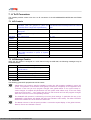
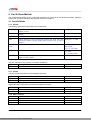
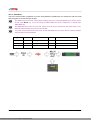
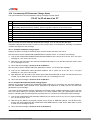
8.4.3 General Controller Parameters
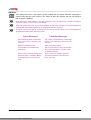
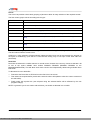
PITCH
adjusts how the controller affects the pitch of the current part
AMP
TVF
adjusts how the controller affects the amplitude of the current part
Adjusts how the controller affects the Time Varying Filter of the
current part
-24 - 0 - +24
except Pitchbend
0 - 24 semitones
-100 - 0 - +100%
-9600 - 0 +9600 cents
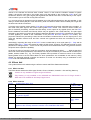
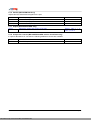
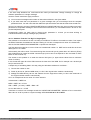
8.4.4 Low Frequency Oscillator Parameters
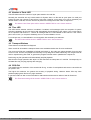
The LFO settings work in combination with the current parts VIBRATO settings.
PMOD
AMOD
Adjusts the depth of the pitch modulation induced by the LFO
Adjusts the depth of the Time Varying Amplitude modulation
induced by the LFO
0 - 127
0 - 127
FMOD
Adjusts the depth of the Time Varying Filter modulation induced by
the LFO
0 - 127
XGedit95 User Manual
This Manual: http://www.manuallib.com/file/2600093
Page 24