1
Startwrite® User’s Manual
Page 21
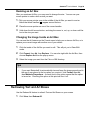
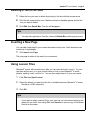
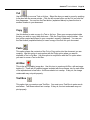
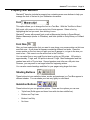
Shade Buttons
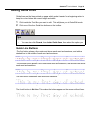
The four shade buttons let you create text ranging from heavily shaded to lightly
shaded.
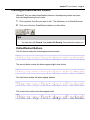
For example, using these buttons, along with Guide Line and Dotted/Dashed buttons,
you can create a sentence like this:
Letter Shading Options
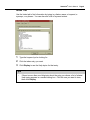
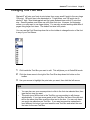
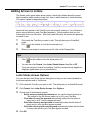
You can use the Letter Shading dialog box to help you set some standards for the
Shading options used in Text Boxes.
1
Click inside the Text Box you want to edit. This will place you in Enter/Edit mode.
2
Click Format, then Letter Shading, then Options.
3
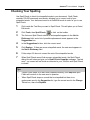
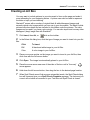
Choose one of the following options:
4
-
Set by shading property bar buttons lets you use the Shading buttons on
the toolbar to determine the shading of all the letters in your Text Box.
-
First letter of every line black automatically makes the first letter of every
line in your Text Box appear black.
-
First letter of every word black automatically makes the first letter of
every word in your Text Box appear black.
-
First letter of every-other word black automatically makes the first letter
of every other word in your Text Box appear black.
Click OK.