1
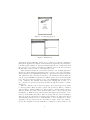
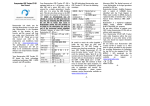
Figure 1: Loading Application
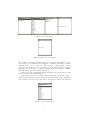
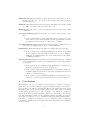
Figure 2: Main Form
application run the JAR file. There are no others preconditions. Navigation
through the application is simple. After starting the application user should see
following picture (Figure 1), that means that application is reading data from
files, the speed of reading could differ for different devices. At that point user
should wait for few seconds, no other input is needed.
After all data from files are loaded user can start to use easyBus application
(Figure 2). At the main screen user have three options to use: Select departure,
Select destination and ADVISE. The first two options is for selecting departure
and destination. After user has chosen the booth destination and departure he
can use option ADVISE, and then device will show data on screen for particular
bus connection. If the user will try to use option ADVISE before he has chosen
both - departure and destination he will get the warning that at least one of
two connection nodes are not specified, and user should chose them to continue
(Figure 2).
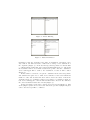
After choosing the option ”Select departure” user can specify how he wants
to enter departure. There are three options: Chose bus stop, Enter coordinates
and Use GPS coordinates (Figure 3). If user wants to enter departure bus stop
name he should chose first option, then he will be able to chose bus stop from
list (Figure 3). With the devices keypad user can navigate up and down to chose
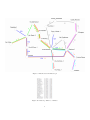
bus stop that satisfies his wishes. After accepting bus stop and everything is
without errors user should see following picture (Figure 4). After that user is
automatically navigated back to main window to chose destination or if the
departure bus stop was wrong he can change it again. If the user wants to
specify his departure bus stop with GPS coordinates, he should take second
2