1
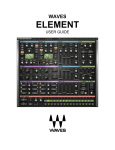
Preset Manager Pressing the left and right buttons cycles through the presets; clicking on the current preset name opens a drop down menu which displays all the presets in the current bank. Click on the circle to the left of the preset to rename it then press enter to save the new preset name. INIT – initiliazes the synth; MENU – opens the menu where you can select the following options: ● Select Bank click to select factory or imported bank; ● Import Bank click to import bank; ● Remove Bank click to remove imported bank; ● Load Bank – click to load a user bank; ● Save Bank – click to save the current bank; ● Load Preset – click to load a user preset. Available multiselection; ● Save Preset – click to save the current preset; ● Copy Preset – click to copy the current preset to the clipboard; ● Paste Preset – click to paste the preset saved to the clipboard, overwriting the current preset; ● Restore Preset click to restore the preset to its default state. This way you can undo all parameter changes you made to the selected preset; ● Insert Preset click to paste the preset saved to the clipboard; this creates a new preset in the drop down list WITHOUT overwriting the current preset; ● Remove Backup Preset click to remove the preset from its current slot and add it to a new slot; ● Check for Update click to check if there are updates available; ● Spire Web Site go to website; ● Undo click to undo the last change, Spire stores up to 10 of the lastest changes in memory that can be undone sequentially. You can copy presets between several instances of Spire open in your project. This is useful to reproduce your favorite user preset bank(s).