1
English
Chapter 3: Use the Box!
3.1 Four steps to watch TV program on LCD/CRT or projector
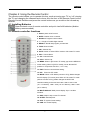
Take the remote control and follow these steps to start watching TV.
1. Press power key
to power on the device
2. Press SYS key to choose TV system. Our default setting is PAL BG/DK.
3. Press Exit key to return to main menu and use VOL+/VOL- key to select “TUNE” menu, choose
Auto scan and press Menu key to start scan.
3.2 PC side VGA resolution setting
It can be used independent of PC system for a full screen display. In addition to the full
screen display, when it is connected to a PC, the PIP sub video window can also be
displayed on the top of the PC system VGA surface. This gives you the option of watching
TV while you work on the PC or just enjoy the full screen program.
While in PIP mode, in order to have the optimized performance, it is recommended to set
PC system VGA in XGA mode (1024 x 768) and the monitor’s refresh rate at 75Hz. See
below for the VGA setting.
1. In Windows system, the VGA resolution setting page can be invoked
by a right click on the mouse when it is pointed at an empty area.
2. When the “display properties” page is shown, select “Settings” for the
desired resolution. The recommended value is 1024 x 768.
3. Click on the “Advanced” button, to select the monitor refresh rate, the
recommended value is 75Hz
4. Click on OK to close the property page.
5. Windows system will change the display mode to your setting and ask
whether to use this display mode or not, click “ok” to confirm the
setting.
6. In Windows ME 95/98, the system will reboot to let the new setting
take effect.
4