1
OPC Server L, User’s Manual
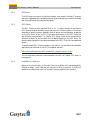
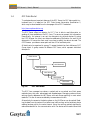
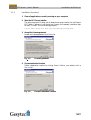
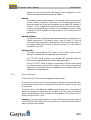
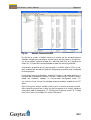
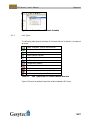
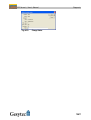
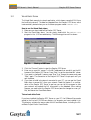
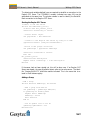
Fig. 4.4:
Diagnosis
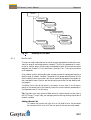
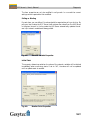
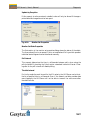
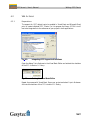
Add Monitor Set
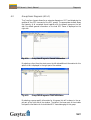
Adding Monitor Points to a Monitor Set
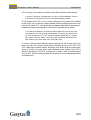
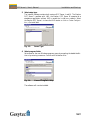
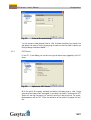
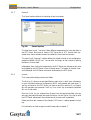
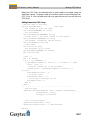
To add monitoring support to a specific network variable browse through the
connected network by navigating in the explorer view above the folder Monitor Sets. There are two possible ways to add the desired network variable to
the monitor set in form of a monitor point:
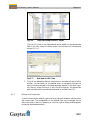
1. Drag-and-drop the network variable onto the tag of an existing monitor
set. The OPC Server will display a status window and create a monitor
point for the NV in the selected monitor set,
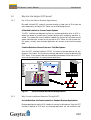
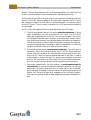
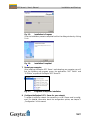
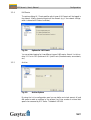
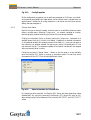
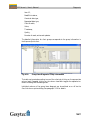
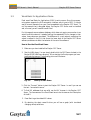
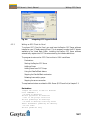
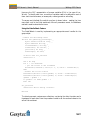
2. Right-click on the network variable to be added. From the context-menu
select Copy. Select the target monitor set, right-click on it and choose
Paste from the context-menu. A monitor point for the new network variable will be created.
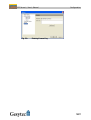
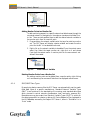
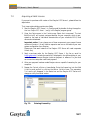
Fig. 4.5:
Paste Network Variable
Deleting Monitor Points from a Monitor Set
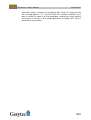
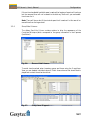
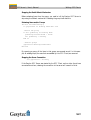
An existing monitor point can be deleted from a monitor set by right clicking
on it and executing the command Delete from the displayed context-menu.
4.1.4
SNVT/UNVT Data Types
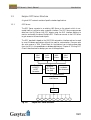
By employing device resource files the OPC Server can automatically use the predefined data types of a specific manufacturer. Standard Network Variable Types
(SNVT’s) are contained in the standard.typ file covering most standard data types
which are used in control networks (temperature, heat, luminosity, pressure, etc).
Manufacturers may also create User Network Variable Types (UNVT’s), which define data types specific to a device or devices. All Device Ressource Files, registered to
the LNS database, are used by the Easylon OPC Server L, either in “Simulation” or in
“Auto” mode.
32