1
Chapter 2 Getting started
Installing a new version of the software
5
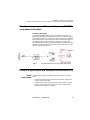
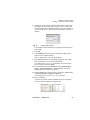
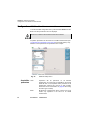
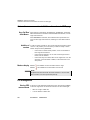
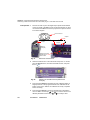
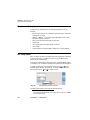
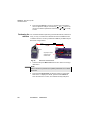
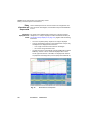
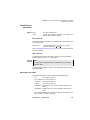
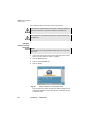
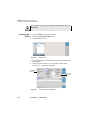
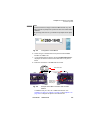
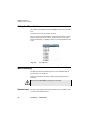
Run FTPServer.exe. An error message will appear: click on OK.
Note: FTPServer.exe is one of the extracted files
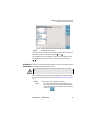
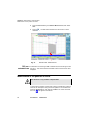
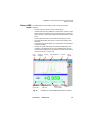
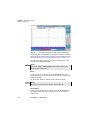
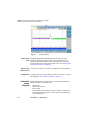
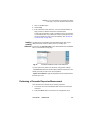
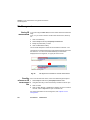
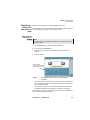
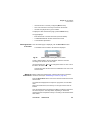
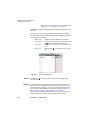
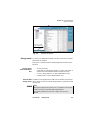
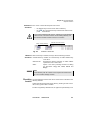
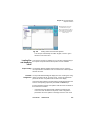
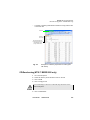
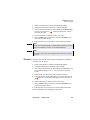
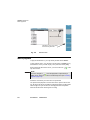
The window «Pablo’s FTP server» is displayed. Click on the green
arrow (or select menu File > Start).
6
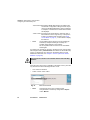
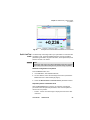
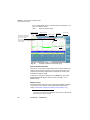
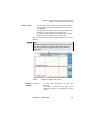
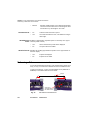
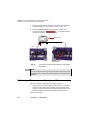
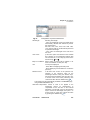
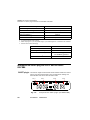
On the Base Unit, press the SYSTEM key, then System Setup: in
Utility > Upgrade Parameters > Server adress, enter the IP
address previously noted (see "" above).
7
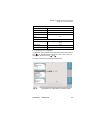
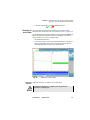
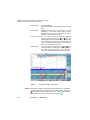
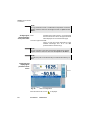
Quit the SYSTEM menu and then press, in succession, Expert Tools
> Software Upgrade > Upgrade via Ethernet.
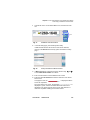
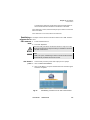
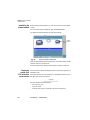
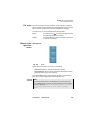
The message Verify IP address of PC server appears.
8
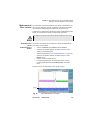
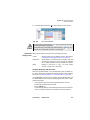
Click on Continue.
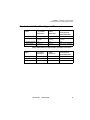
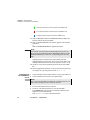
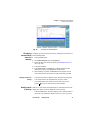
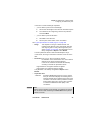
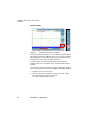
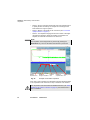
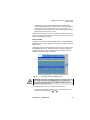
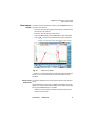
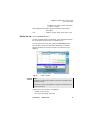
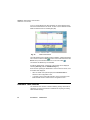
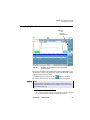
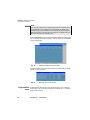
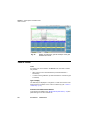
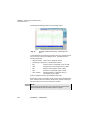
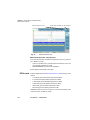
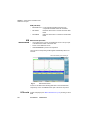
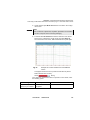
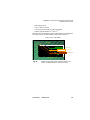
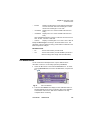
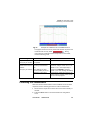
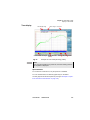
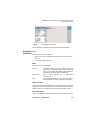
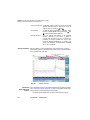
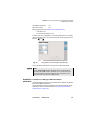
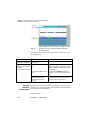
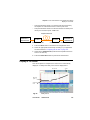
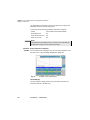
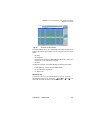
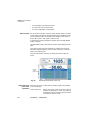
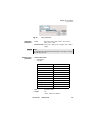
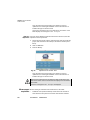
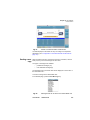
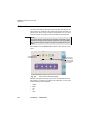
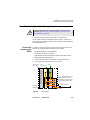
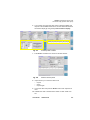
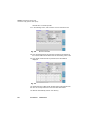
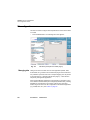
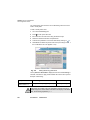
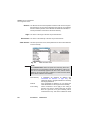
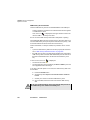
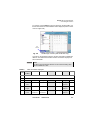
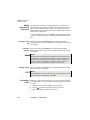
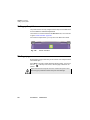
The list of the software versions available on the PC is displayed
next to the versions installed on the Base Unit.
9
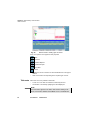
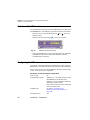
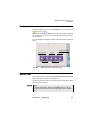
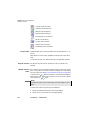
Click on Show Prev. choice or Show Next Choice to display the
previous and next versions available.
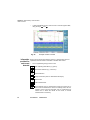
10 Click on Confirm this Choice to start the upgrade of the selected
software(s).
or
Click on Confirm All Choices to upgrade all versions.
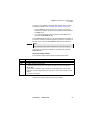
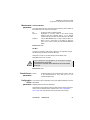
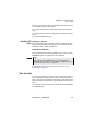
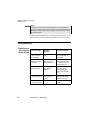
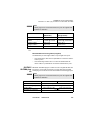
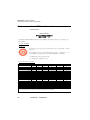
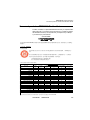
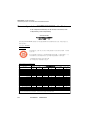
NOTE
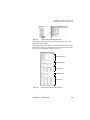
The software versions list does not always appear (cf previous versions) as well as the Show Previous / Show Next Choice buttons
and the Confirm/Continue key. In this case, the upgrading starts
automatically.
Upgrading begins. The Base Unit is automatically rebooted.
Upgrading takes several minutes. At the end, the Base Unit is automatically restarted (if the boot version is superior to version 01.16).
11 On the PC, close the two windows opened to perform the installation.
Installation
from Ethernet
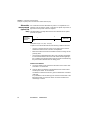
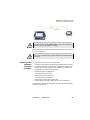
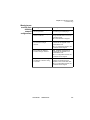
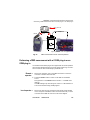
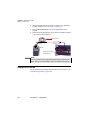
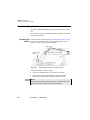
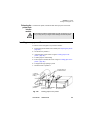
Before starting the software upgrade via Ethernet, make sure the IP
adress of the PC server.
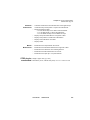
1
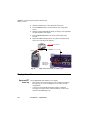
Press, in succession, Expert Tools > Software Upgrade >
Upgrade via Ethernet.
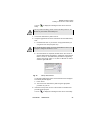
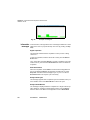
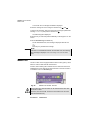
The message Verify IP address of PC server appears.
2
Click on Continue.
User Manual
780000102/16
25