1
Chapter 2
New Features in LabVIEW 5.1
Building an Application
Complete the following instructions to build an application in LabVIEW.
1.
2.
3.
4.
LabVIEW 5.1 Addendum
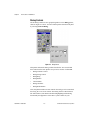
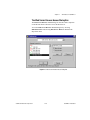
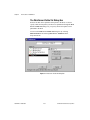
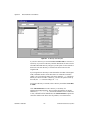
Select Project»Build Application…. The Build Application dialog
box appears. The Build Application dialog box contains the following
tabs: Target, Source Files, VI Settings, App Settings, and Installer.
You can create a new build or load a build file that you created
previously.
•
If you want to create a new application, proceed to Step 2.
•
If you already have a build file, click Load… and choose the .bld
file to load. Then proceed to Step 6.
From the Target tab, specify the following information:
•
Application name—The name of the application you are
creating. This file should have a .exe extension.
•
Destination directory—The path and name of the directory in
which to create and save your new application.
•
Support file directory—The path and name of the directory in
which to save any support files.
Under the Build section of the Target tab, choose one of the following
two options:
•
Single application containing all VIs—Check this option to
create a single application containing all of your VIs.
•
Small application with external file for subVIs—Check this
option if you want to keep the main application small.
From the Source Files tab, you can configure the VIs that make up
your application. You can specify top-level VIs, dynamically loaded
VIs, and additional non-VI files (such as readme files). You can update
the file list automatically as VIs are added or removed from your
hierarchies. Depending on what kind of source files you want to add,
complete the instructions below.
a.
If you want to add top-level VIs, click Add Top Level VI….
The Open dialog box appears where you can enter a file name,
or browse to find the VIs you want to add. When you select a
top-level VI, LabVIEW automatically includes all its subVIs and
related files (such as menu files or DLLs).
b.
If you want to add dynamic VIs, click Add Dynamic VI….
If your VI dynamically calls any subVIs using the VI Server,
LabVIEW cannot detect them automatically, so you must add
them by using this option.
2-42
© National Instruments Corporation