1
Contents
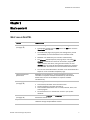
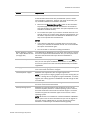
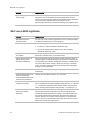
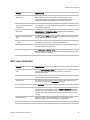
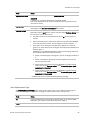
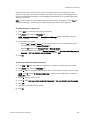
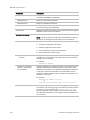
Chapter 1 What's new in v5....................................................................................................... 7
What's new in WebCTRL ............................................................................................... 7
What's new in EIKON LogicBuilder .............................................................................. 10
What's new in SiteBuilder .......................................................................................... 11
What's new in ViewBuilder ......................................................................................... 12
What's new–Other tools ............................................................................................. 13
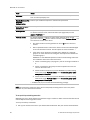
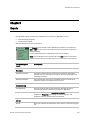
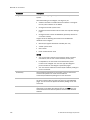
Chapter 2 What is WebCTRL? .................................................................................................. 15
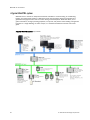
A typical WebCTRL system .......................................................................................... 16
WebCTRL editions ...................................................................................................... 17
WebCTRL tools ........................................................................................................... 18
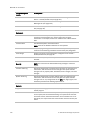
Chapter 3 Getting to know the workspace ................................................................................. 21
Navigating the system ................................................................................................ 22
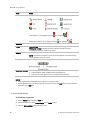
Tree icons and hover text ............................................................................................ 22
To show/hide the navigation pane .............................................................................. 24
Zooming and resizing in the action pane ..................................................................... 24
Using right-click menus .............................................................................................. 24
To print the action pane .............................................................................................. 24
Colors and status in WebCTRL .................................................................................... 25
Colors and setpoints .................................................................................................. 25
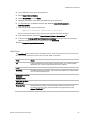
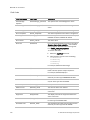
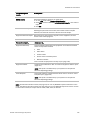
Chapter 4 Running WebCTRL Server ......................................................................................... 27
To run a system .......................................................................................................... 27
To set up a computer and browser to view WebCTRL .................................................... 27
To run without connecting to the controllers ................................................................ 29
To switch to a different system .................................................................................... 29
To send a message to logged in operators ................................................................... 30
To log off an operator.................................................................................................. 30
To shut down a system ................................................................................................ 30
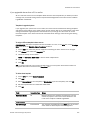
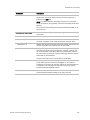
Chapter 5 Working with equipment .......................................................................................... 31
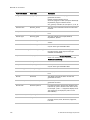
Graphics pages .......................................................................................................... 33
To attach a graphic in WebCTRL ................................................................... 33
To edit a graphic on a WebCTRL client .......................................................... 34
To organize multiple graphics for a tree item ................................................ 35
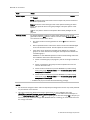
Properties pages ........................................................................................................ 36
To view or edit properties ............................................................................. 36
Point types .................................................................................................. 37
Logic pages ................................................................................................................ 39
To view a Logic page .................................................................................... 39
To locate a microblock, section, or label....................................................... 39
To change properties, alarms, or trends........................................................ 39
Using a Logic page to troubleshoot .............................................................. 40
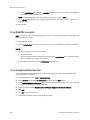
Changing multiple microblock properties .................................................................... 41
To use Global Modify ................................................................................... 41
To use Global Copy ...................................................................................... 42
Downloading to controllers ......................................................................................... 43
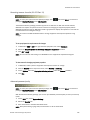
Download Options ....................................................................................... 44
To download from the Downloads page ........................................................ 44
To download from a Properties page ............................................................ 45
If a controller fails to download .................................................................... 46
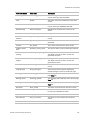
© 2011 Automated Logic Corporation. All rights reserved throughout the world. Automated Logic Corporation, the
Automated Logic logo, WebCTRL, EIKON, BACview, SuperVision, and InterOp are registered trademarks, and Alert is a
trademark of Automated Logic Corporation. BACnet® is a registered trademark of ASHRAE. All other brand and product
names are trademarked by their respective companies.