1
CBAS Manual – REV 08-12-2009
© 2009 Computrols, Inc
Backup Database
Allows the user to backup the database to a file or floppy disk. Can be done in Editor or Real Mode. For full
instructions, see Chapter 5, Section 4 - Backup Database.
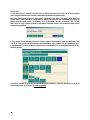
Change Time
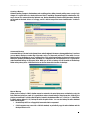
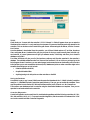
This item is only available in Real Mode and allows you to change the date also. Changes here are also reflected
in Windows. Just Click on Change Time, click on the Date field and select the date from the calendar. Right click
or ESC to save. Click on the Time field and enter the time. Right click or ESC to save. Right click or ESC again to
exit.
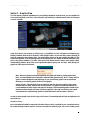
Peer-to-Peer Setup
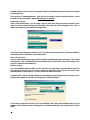
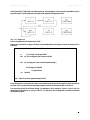
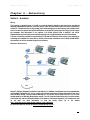
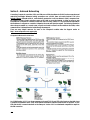
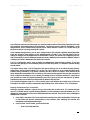
This item is only available in Editor Mode, because it adds points and makes changes to the database. Peer-toPeer Setup allows you to select points that will be shared with other controllers, even when the CBAS DPU
computer is off-line or not present. This feature extends the functionality of Computrols full line of stand-alone
BASNet controllers beyond the controller level to the system level.
The Peer-to-Peer Setup interface has instructions built in to make it easy to configure. For more information, see
Chapter 5, Section 2 - Peer-to-Peer.
Program Passwords
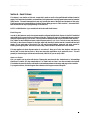
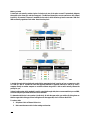
If you are logged in with unrestricted rights, this function allows the user to add users, change passwords, and
change restrictions on user accounts. When a new database is created, Default is the only user and this user has
no restrictions. Before the database is put into service and made available to other users, the database
administrator should create a user account with unlimited restrictions for him to use. The Default user should be
edited to restrict its access and other users should be added to give them access to what they need.
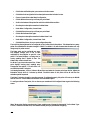
General restrictions can be made by un-checking various topics which will limit access to certain areas of the
program. You can also restrict access to individual points in the points Restrictions subsection. See detailed
instructions in Chapter 5, Section 3 – Password Protection.
Program Logical Groups
This menu item is also found in Text View, Logical Groups. It allows the user to create a new group based on
whatever criteria you choose, edit or delete an existing group, or view the points in an existing group. Editing
Logical Groups is explained fully in the Text View section.
Position Points
This menu item allows the user to position multiple points in Text View, so that points that need to be viewed
more often can be placed at the top of the list and associated points can be grouped together. Click on the
Position Points menu item.
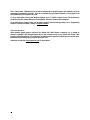
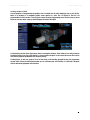
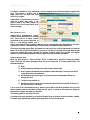
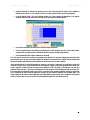
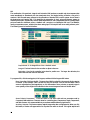
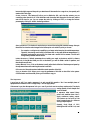
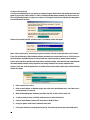
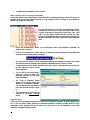
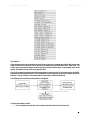
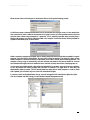
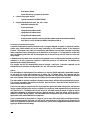
Select multiple points on the left side of the Group Position window. Use the Shift key to select contiguous points
and the Ctrl key to select non-contiguous points. The selected files will be placed in the middle section. Select the
point you want to place the points above in the list on the right side. Right click or hit Esc to save the changes.
Header Points
Header Points are 1 or 2 points that you can choose to have showing just below the Main Menu when in Real
Mode. These points, and their statuses, will show up there no matter what view you are in.
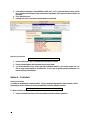
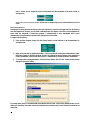
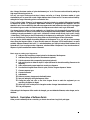
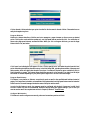
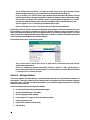
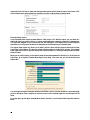
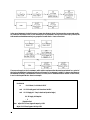
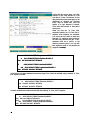
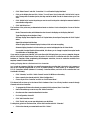
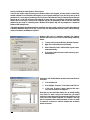
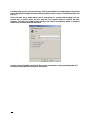
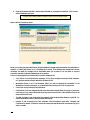
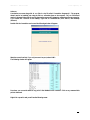
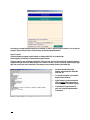
Header Points couldn’t be easier to program. Just click on Header Points on the System Menu and you’ll see the
following window:
65