1
4
SETTING UP CHANNELS
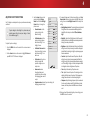
You can use the TV’s Channels menu to:
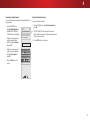
Selecting a Channel Source
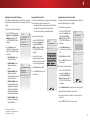
Adding New Channels
Select the type of tuner input you will be using. You can select either
Antenna (Over-the-air) or Cable (Out-of-the-wall) connections.
Occasionally, you may need to add a new range of channels or
add a new analog channel. You can do this by using the Partial
Channel Search and Add Analog Channel options. This is quicker
than scanning all possible channels.
•
Select a Channel Source
•
Find Channels
•
Perform a Partial Channel Scan
Channels not searched
•
Manually Add Channels
Channel Source
•
Select channels to skip
Find Channel
Scanning for Channels
Partial Channel Search
TheExit
TV may2Dneed to
scan for channels before it can display programs
3D
and their associated information. A channel scan is required for
free over-the-air channels (using an antenna) and cable channels
ABC
from an out-of-the-wall
connection (without a cable box). Moving
the TV to an area with different channels requires the TV to scan for
Input
Wide
CC
channels
again.
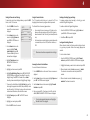
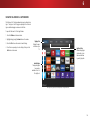
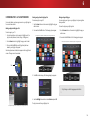
1. From the CHANNELS menu, highlight Channel Source and
press OK. The CHANNEL SOURCE menu displays.
VIZIO
CHANNELS
Zoom
Normal
Panoramic
2. Wide
Highlight
Antenna
or
Cable and press OK. Press EXIT.
Cable
Add Analog Channel
Skip Channel
Analog Audio
Digital Language
Stereo
English
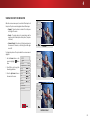
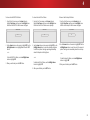
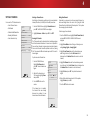
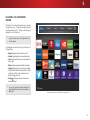
To perform an Auto Channel Scan:
1. Sleep
From the CHANNELS menu,
Picture
Timer
highlight
Find Audio
Channels, and
press OK. The auto channel scan
begins.
2. Network
Wait until
the channel
scan is
Settings
Help
100% complete. Highlight Done
and press OK.
VIZIO
VIZIO
FIND CHANNELS
Channels Found
Digital: 0
Analog: 19
18%
Complete
Cancel
3. Press the EXIT button on the
remote.
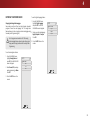
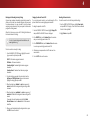
To add a range of new channels:
1. From the CHANNELS menu, highlight Partial Channel Search,
and press OK. The PARTIAL CHANNEL SEARCH menu is
displayed.
2. Highlight Scan Mode and select the type of channel you are
adding: Analog, Digital, or Analog/Digital.
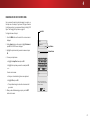
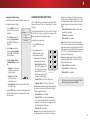
3. Highlight From Channel and enter the channel where you
want to begin the scan. (Use the Left Arrow button to
backspace. Use the Number Pad on the remote to enter the
channel.)
Zoom To Normal
Panoramic
4. Wide
Highlight
Channel
and enter the channel where you want
to end the scan. (Use the Left Arrow button to backspace. Use
Wide
Zoom
Normal
the Number
Pad onPanoramic
the remote to enter the channel.)
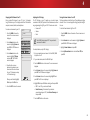
5. Exit
Highlight
Start3Dand press OK. The partial channel search
2D
begins.
2D
3D
ABC
6. Exit
Wait until
the partial
channel search is 100% complete.
Highlight Done and press OK.
Input
Wide
ABC
CC
Input
Wide
CC
Sleep
Timer
Picture
Audio
Sleep
Timer
Picture
Audio
Network
Settings
Help
Network
Settings
Help
7. Press the EXIT button on the remote.
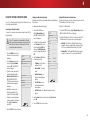
If the channel scan is cancelled,
the channels that were already
discovered are retained. A new
channel scan will clear all channels.
Cancel the channel scan.
36