1
4
SETTING UP CLOSED CAPTIONING
Your TV can display closed captions for programs that include them.
Closed captions display a transcription of a program’s dialogue.
If the program you are viewing is not being broadcast
with closed captions, the TV will not display them.
The Closed Captions menu does not appear when an
HDMI input is selected.
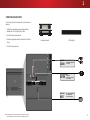
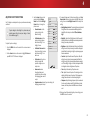
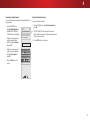
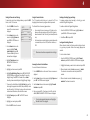
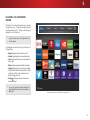
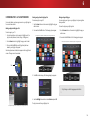
2. Use the Arrow buttons on the
remote to highlight Closed
Captions and press OK. The
CLOSED CAPTIONS menu is
displayed.
3. Use the Arrow buttons on the
remote to highlight Closed
Captions and then use the Left/
Right Arrow buttons to select
On or Off.
4. Use the Arrow buttons on
the remote to highlight either
Analog or Digital Closed
Captions.
5. Use the Left/Right Arrow
buttons on the remote to select
the caption channel you wish to
display, then press EXIT.
VIZIO
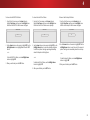
CLOSED CAPTIONS
Closed Captions
Off
Analog Closed Captions
CC1
Digital Closed Captions
CS1
Digital Style
•
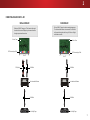
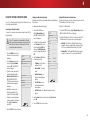
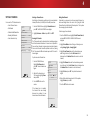
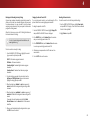
Digital closed captions can be displayed according to your
preference. See the diagram on the next page for an explanation of
the parts of the closed caption area.
Background Color - Change the color of the background
directly behind the text.
•
Background Opacity - Change the transparency of the
background directly behind the text.
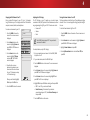
To change the appearance of digital closed captions:
•
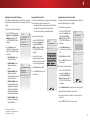
1. From the CLOSED CAPTIONS
menu, use the Arrow buttons to
highlight Digital Style and press
OK.
Window Color - Change the color of the closed captioning
box.
•
Window Opacity - Change the opacity of the closed
captioning box.
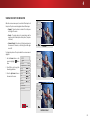
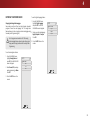
2. Use the Left/Right Arrow
buttons on the remote to select
Custom. The DIGITAL STYLE
menu appears as shown.
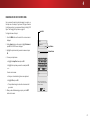
To activate or deactivate closed captions:
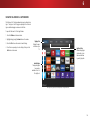
1. Press the MENU button on the
remote. The on-screen menu is
displayed.
Changing the Appearance of Digital Closed Captions
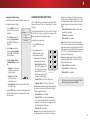
3. Use the Up/Down Arrow
buttons on the remote to
Wide
Zoom theNormal
highlight
settingPanoramic
you wish to
change, then use the Left/Right
Arrow buttons to change the
setting:
VIZIO
DIGITAL STYLE
Custom
Caption Style
Text Style
As Broadcast
Large
Text Size
Green
Text Color
Text Opacity
As Broadcast
Text Edges
As Broadcast
Text Edges Color
As Broadcast
As Broadcast
•
2D
3D
Caption
Style
- Choose
As Broadcast to keep
ABC
default settings
or Custom
to manually change each
Input setting.
Wide
CC
Sleep
Timer
3D
ABC
Input
Wide
CC
Sleep
Timer
Picture
Audio
Network
Settings
Help
As Broadcast
Exit
•
2D
Red
Window Color
Window Opacity
Exit
Black
Background Color
Background Opacity
Panoramic
4. Wide
When Zoom
you areNormal
satisfied
with the appearance of the closed
captions, press the EXIT button on the remote.
Text Style - Change the
font used for the closed
captioning text.
Picture
Audio
•
Text Size - Make the text larger or smaller.
•
Text Color - Change the color of the text.
•
Text Opacity - Change the transparency of the text.
•
Settings
Text
EdgesHelp
- Change the effects at the edges of the text,
such as raising the edges or adding drop shadows.
•
Text Edges Color - Change the color of the text edge
effects.
Network
39