1
3.4
Refreshing images
If the user modifies an image while it is in the stack, such modifications may not automatically
be reflected in the archived image. Refreshing an image reloads it from disk, which will
update the archived image to the latest version. This can be done by selecting File>Refresh
and selecting to refresh either the current image or all archived images. Some processes,
such as computing the photometric zero-point will automatically refresh the image upon
completion.
3.5
Navigating the stack
Images can be quickly skimmed through with the arrow buttons located directly under the
pan and track mini-windows. The user can also jump to any desired image by selecting
it from the drop down list. More advanced navigation options are available in the Blink
Control toolset, discussed in section 3.6. The keyboard shortcuts Page Up / Page Down can
also be used to move forward and backwards through the stack. The Home key will jump to
the first image and the End key will jump to the last.
3.6
Blinking images
The arrangement of working images into the stack makes blinking easy. Simply add the
images in the order you wish them to be animated. The blink control toolbox provides an
easily-accessible method for controlling the blinking process. To start a blink, simply press
the play button. The images will begin to animate through at their default rate. This rate
can be controlled with the Animate Speed slider. Three animation types are offered: forward, backward, and bounce (where the images are played forwards and then backwards).
The animation can be stopped by pressing the pause button.
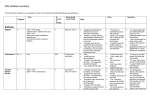
Parameter
animate speed
Default
0.4
Type
float
Description
time (in sec) per image on
[0.1,1]
animate type
forward string forward/backward/bounce
tb blink visible 1
0/1
draw the blink controls?
tb blink toggle 1
0/1
expand blink controls initially?
9