1
5 Move each of the faders once again through its full range of movement and
confirm that the values change the full range from 0 to 255. If they do not then
you may need to calibrate the faders once again.
6 Press • to end.
Up dati ng fi rmware
LightCorder firmware has to be updated via the PC’s COM port. A DMX
connection may be used if the computer is equipped with a Martin LightJockey ISA
DMX Interface (4064) card, or a Martin MP-2 software uploader.
TO UPDATE WITH A COMPUTER USING THE MARTIN
SOFTWARE UPLOADER PROGRAM
1 Connect the LightCorder to the computer COM port (or DMX interface if you are
using a Martin 4064 DMX interface).
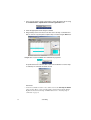
2 Turn on the computer and the LightCorder. Start the Martin Software uploader
program (available from Martin).
3 Configure the hardware as necessary and copy the LightCorder update file to
the PC as you would any other update file. (See Martin Software Uploader help.)
4 Click Update Fixture or Device. Select LightCorder from the Fixture or Device
menu and select the desired Update File. Click Update via RS232 or Update via
DMX link (4064) depending on the connection.
5 Select Options from the LightCorder main menu. Select Update
Firmware, then select either Update via RS232? or Update via
DMX?, depending on the connection. Wait five seconds and then click Update
Device in the update dialog. The upload process takes several minutes.
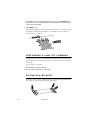
TO UPDATE WITH AN MP-2
1 Update an MP-2 memory card with the latest LightCorder update file.
2 Connect the DMX output of the MP-2 to the DMX input of the LightCorder.
3 On the MP-2, select Read Memory Card from the main menu. Select the
slot that holds the LightCorder update file.
4 Select Update Software. Press Yes to confirm. Select Update in
BOOT mode.
5 On the LightCorder, select Options, Update firmware, and then
select Update via DMX? Wait five seconds.
6 On the MP-2 select Ok to start the upload.
Advanced mode
21