1
Basic Processing Procedures
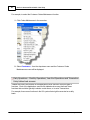
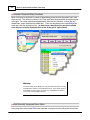
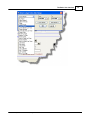
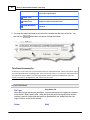
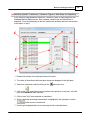
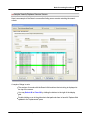
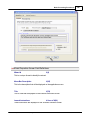
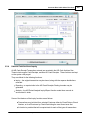
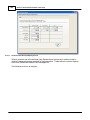
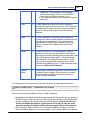
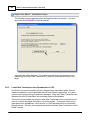
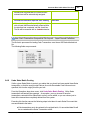
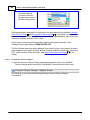
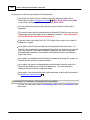
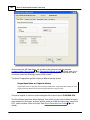
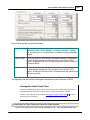
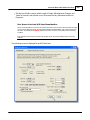
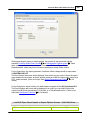
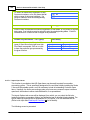
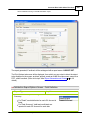
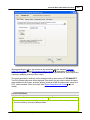
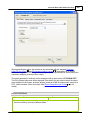
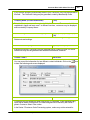
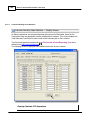
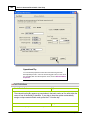
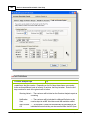
binoculars icon will be displayed, and
may be used to select a particular code
that is to be test for.
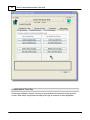
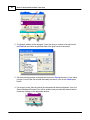
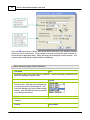
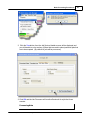
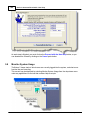
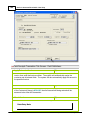
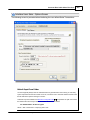
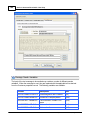
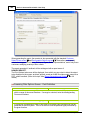
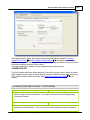
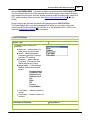
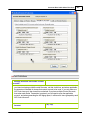
4) In the Replacing frame, click on the
The Contents radio-button. Note that
you may choose to select a "replacing"
field to have it's current value displayed,
but not actually proceed with the
replacement phase.
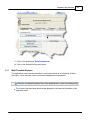
5) From the Of Field drop-down list, select
the field that is to have it's value
replaced.
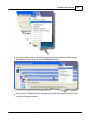
6) In the field provided, enter the value to be
assigned to the selected field. If the field
is for a standard code that is defined by
the system, the binoculars icon will be
displayed, and may be used to select a
particular code that is to be assigned.
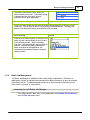
7) The Preview Items check-box should
always be checked. After the "search"
phase, if this check-box is set, then the
system will display a list of those
records that have matched the test
successfully. If this box is not checked,
and you have chosen to actually have a
field's values replaced, then the system
will just go ahead and do it without first
asking.
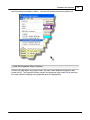
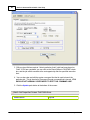
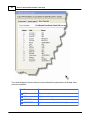
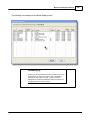
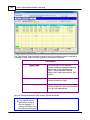
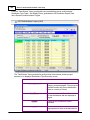
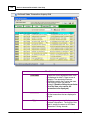
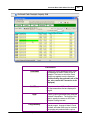
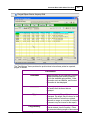
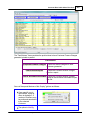
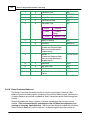
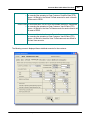
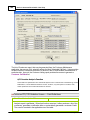
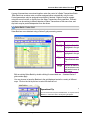
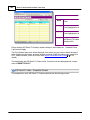
8) Before the replacement pass, the
records that have been selected will be
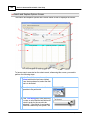
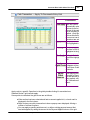
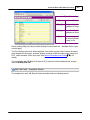
displayed in the grid. Use the standard
grid navigation buttons to view those
selected records. It's an opportunity to
verify that you have entered the correct
search values.
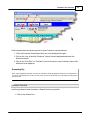
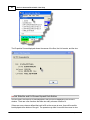
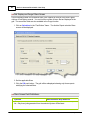
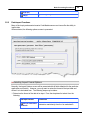
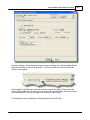
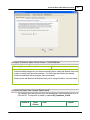
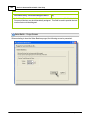
9) Initially, after the Search and Replacing
options have been entered, click on the
Start Searching push-button to start the
search.
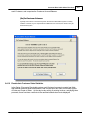
10 After the selected items have been
) displayed to the grid, you may choose to
proceed and have all records found
updated, or you can select those items
© 2007 - 2014 by Sentinel Hill Software, all rights reserved
129