1
Billing
261
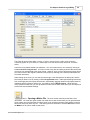
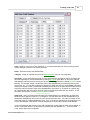
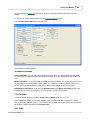
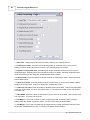
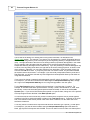
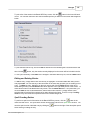
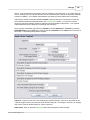
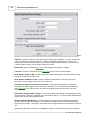
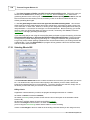
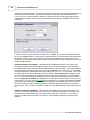
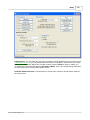
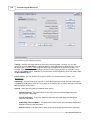
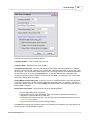
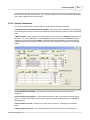
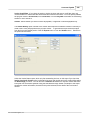
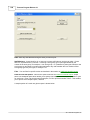
38. Beginning Line for Heading on Subsequent Pages - Enter here the line number where you
want to begin printing for all pages after page 1 on each bill. Normally you should enter 1 or 2, unless
you need to increase the top margin because you are using a pre printed form.
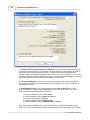
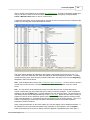
39. Include in Heading on Subsequent Pages - If a bill goes more than one page, you can print a
heading on each subsequent page showing any or all of the following items:
The Statement Date
The Statement Introduction
The Client Name
The Matter Title
The File ID
The Invoice Number
Select the items you want by entering Y in the box following each item. Enter N if you do not want an
item.
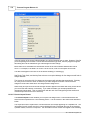
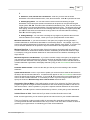
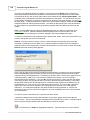
40. Show Page Numbers in Letters or Numbers - The heading of each page of a bill following page
1 always shows the page number, in addition to the items selected in option 39. The page number can
be printed using numbers or letters. For example, to print in the format "Page 2", enter N. To print in
the format "Page Two", enter L.
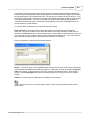
41. Show Balance Due in Heading - Enter Y if you want to show the Balance Due in the heading of
the bill. It will appear at the right hand margin opposite the client's name and address printed in bold
with the text entered in the Text space. This makes it easier for the client to see how much they need
to pay instead of having to search to the end of the bill.
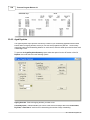
17.3.3 Balance Forward Section
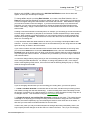
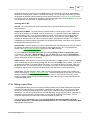
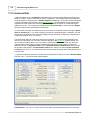
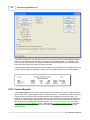
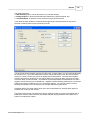
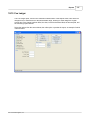
If there is a balance forward from previous billings for a matter, bill format options 50-59 determine how
that balance forward is shown on the bill.
The "balance forward" is defined as the account balance which is carried forward from the previous
bill, and should match the balance due shown on the previous bill. You can show this balance forward,
if any, on each bill, together with a detail of any payments or credits that have been received during the
current billing period, adding the amount which remains unpaid to the balance due on the current bill.
Alternatively, you can omit reference to the balance forward unless any portion of it remains unpaid,
or you can omit reference to the balance forward completely and just show the total of the current
charges by generating a current charges only bill. The following options control how and when the
balance forward is shown on the bill, and also control whether or not credit balances carried forward
appear..
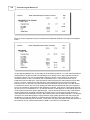
In addition to appearing separately on the bill, the balance forward also appears in the recap summary
that can be printed at the end of each bill. Therefore, it is not necessary to show the balance forward
separately if you are also printing the recap summary.
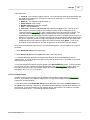
At the end of this section is a brief summary which restates the three major options that determine
when the balance forward appears, and instructions for how to implement each option.
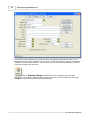
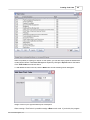
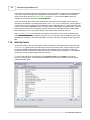
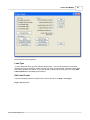
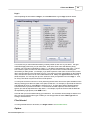
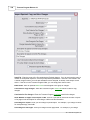
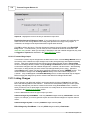
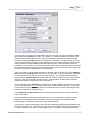
50. Show Balance Forward on Bill - Enter Y if you want to show the balance forward as a separate
item on the client's bill. Enter N to omit it. If you omit the balance forward as a separate item, you can
still show it in the Statement Recap at the end of the bill, and the amount of any unpaid balance
forward will be included in the Balance Due that appears at the end of the bill, unless you are
generating a current charges only bill. If you are generating a current charges only bill, then the
balance forward will not appear anywhere on the bill, regardless of the instructions you enter in this
section, nor will it be included in the Balance Due at the end of the bill.
2011 Tussman Programs, Inc.