1
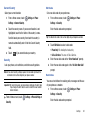
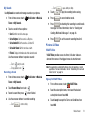
Fonts
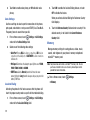
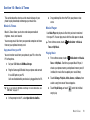
Transition Effect
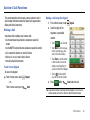
Set the size of fonts in the Keypad, and the font style for menus.
1.
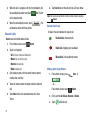
From a Home screen, touch
Settings ➔ Display
1.
Settings.
2.
2.
Touch Size field and select the Dial Font and Messaging
1.
Settings ➔ Display
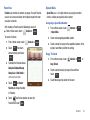
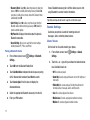
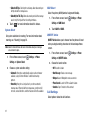
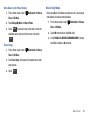
Settings ➔ Clock Format.
2.
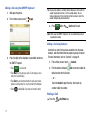
Touch the desired Clock Format (Analog, Large Analog,
Digital 12, Digital 24, Dual Clock, Off).
3.
Touch ON (activate) or OFF (deactivate).
Touch Settings
Set the format for the Clock widget.
From a Home screen, touch
Settings ➔ Display
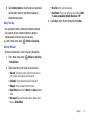
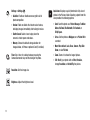
Touch Settings let you set options for: Auto Lock, and Unlock
Screen.
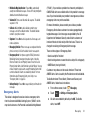
Font size.
Clock Format
1.
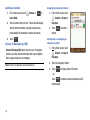
From a Home screen, touch
Settings ➔ Transition Effect.
Touch the Style field and select a font type as the Dial Font
or Menu Font.
3.
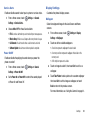
Activate or deactivate the default animation effect during
transitions between menu/options pages.
Touch Off if you do not want the clock to display.
From a Home screen, touch
Settings ➔ Touch
Settings.
2.
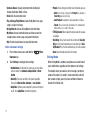
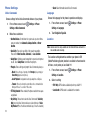
Make selections for these settings:
• Auto Lock: Control whether the display automatically locks when
the backlight turns off.
• Unlock Screen: Change the method that unlocks the screen.
Selections are: Lock Key Only, Lock Key and End Key, or
Any Key.
Settings
62