1
CDA Start Up Screen
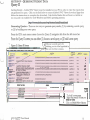
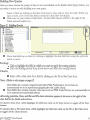
The next screen that you see, after you Log into CDA from the CDA website, is the CDA Start Up
Screen. The information displayed on this screen includes system updates, changes, and other
systems-related information.
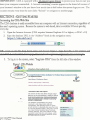
To access the CDA Log In Screen - Click on the blue Login to CDA link located on the left side of
the window.
Figure 2. CDA Start Up Screen
~mi
5
--------.---
m p n m "Mates amt manges
- -.
+
--
-
.. .
-
-
..- .
----
*a upctatect r/3o/2me
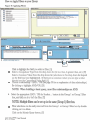
If you redeve M e IE security warning message "This page contains both secure and nonsecure Item. Da vau want to
display the nonsecwe items?', y w can disable this behavior by doing the followinp:
1. In your web browser go to Took.
2. Select Internet Options horn the drop down menu.
3. Click on the Security b b .
4. Click on the Web content m e you use to access t ' SiCa.
6. Scroll down t o find the heading MisceRaneous.
7. Find the sub-heading Display Mix& Content
8. C l i i Enable.
9. Qick OK.
10. In response to 'Are wu sure you want to change the sea&
11.CW( OK to dose the lntemet Ophons box.
settings for this zone7' didc Yes.
rebievaing FSSA and pthnassessment informalion.This mcdute is active, however we are in the
dits kabaos on an mdic6sbict basis. If you have a m e urgent needfor this kinbim,
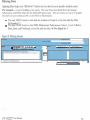
Logging In To CDA
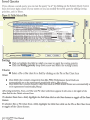
Figure 3. CDA Log In Screen
Please enter your user name and password
Password
User names and
passwords are
case sensitive.
At the login screen, enter your user name and password and click on the
button.
4.
AIU CDAQZWZUser Manual
u-..i.-a.
7
f m n ~