1
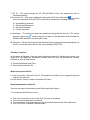
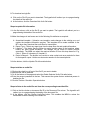
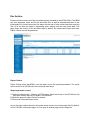
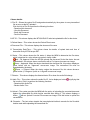
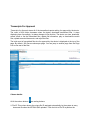
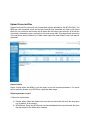
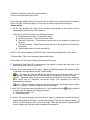
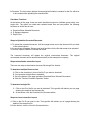
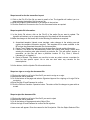
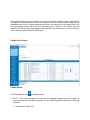
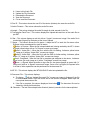
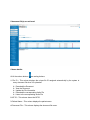
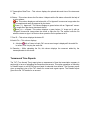
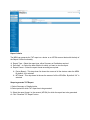
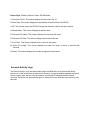
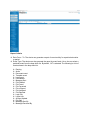
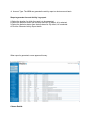
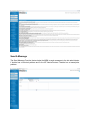
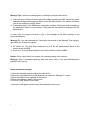
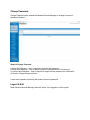
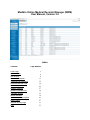
Audio Archive details all of the audio files uploaded by all of the doctors under the MRM account. Doc Archive shows the details of the document files. 7. On the right of Audio and Doc archives, there are two reports as below: Under Transcription – This report displays the list of all the audio files that are being transcribed/edited. Transcripts for Approval – This report displays the list of all the document files that are completed and uploaded by the MT/QA and are ready for approval by the doctors. 8. The Navigation Menu option buttons are on the right middle of the page. Various facilitating options available to the MRM are: Download Recent Files – This option helps the MRM to download the transcribed files with one click. Manual Audio Upload – This option helps the MRM to manually upload the audio files. Auto Audio Upload – This option helps the MRM to automatically upload the audio files. Upload Template – The MRM can upload the template manually with the help of this option. Upload Corrected Doc – This option helps the MRM to upload the corrected document against any transcribed file after making the required corrections to it. Template Archive – This option displays the details of all the templates uploaded by the doctors and the MRM for the transcriptionist. Search EPR – This option retrieves the audio and transcribed files by the selected search criteria. TAT Report – This option displays the details of Turn Around Time for transcribed files. Billing report – This option helps the MRM to generate a billing report based on the criteria selected. Recent Activity Log – This option gives a detailed report of all events occurring in the MRM’s account on event and doctor account basis for the selected duration. FAQ – These are frequently asked questions. They answer most of the MRM’s general queries. Send a Message – In the event of a technical or non-technical problem, the MRM can send a message to the Site Administrator, the MT Administrator or to other doctors. There is no need to enter an email address or setup Outlook to use this web-based messaging function. Change My Password – The MRM can change his/her account password through this option. Logout – The MRM can logout by clicking this button.